
User Manual

4422-954-85011_582-Trulifi Controller 6800 Controller User Manual
It is strongly recommended to change/update this
password and store it in a secure location. Please make
sure that you document and store this password in a
secure place
.
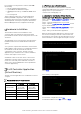
If the password is lost, you can reset the LiFi Controller
Unit to it’s default state by connecting a keyboard and
monitor to the LiFi Controller Unit and reboot it.
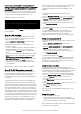
When the following screen appears:
Press the ‘
r
’ key and then
Enter
to reset the system to
factory defaults.
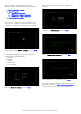
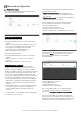
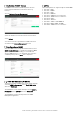
Step 2: LAN settings
The controller can obtain an IP address from a DHCP
server or you can assign a static IP address. To select
your preferred IP address method:
• Choose
Network > LAN Settings
to open the LAN
Settings page.
•
Depending on your network configuration select
Dynamic or Static.
•
In case of a dynamic IP address, all fields are filled-in
automatically by the DHCP server and cannot be
changed. Click the
Dynamic
button to validate your
choice.
•
In case of a static IP address, after having selected the
Static
button you are requested to provide the
IP
Address, Subnet Mask, Gateway, DNS Server,
Alternative DNS
Server
information and then confirm
your selection by clicking the
Save
button. Your
selection is not confirmed as long as all fields are not
correctly filled in.
By default, the Controller will use dynamic IP address.
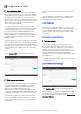
Step 3: Trulifi Encryption password
To create a secure connection between a LiFi access
point and a USB key, the LiFi link is encrypted using a
password. This LiFi encryption password must be
configured in each access point and each USB key in the
LiFi domain.
To facilitate this task, the controller can populate the
new password in each access point in your LiFi domain.
This automatic password change can only be performed
on access points that are associated to your LiFi domain
(the status page lists the associated access points). In
case an access point is not connected or associated at
that moment, the access point will be blocked i.e. no LiFi
communication will be possible by this access point after
reconnecting it. To unblock this access point, you need
to resynchronize the passwords between the controller
and this access point. Go to the web interface of the
access point and change the LiFi encryption password
manually (see “Trulifi 6002 USB key - User Manual).
The controller cannot change the passwords of the USB
keys. The passwords of the USB keys have to be
configured manually (see “Trulifi 6002 USB key - User
Manual”).
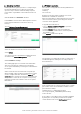
To change the LiFi encryption password from the
controller:
• Choose
Network > Security
to open the security page.
• Enter the
previous password
, the
new password
and
confirm
the password. Passwords are case-sensitive
and can contain from 7 to 32 ASCII characters.
Password can contain spaces and special characters.
• Click
Change Password
.
The default password for every access point, USB key and
controller is
trulifi.
It is strongly recommended to change/update the
encryption password and store it in a secure location.
If the encryption password is lost the controller
application needs to be returned to its default settings.
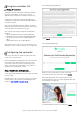
Step 4: Login password
The Controller UI is protected by a password that can be
changed:
• Choose
System > Administration
to open the
administration page.
• Enter the
previous password
, the
new password
and
confirm
the password. Passwords are case-sensitive
and can contain from 7 to 32
ASCII characters.
Password can contain spaces and special characters.
•
Click
Change Password
.
The default login password is
admin.
It is strongly recommended to change/update this login
password and store it in a secure location. If the login
password is lost the controller application needs to be
returned to its default settings.
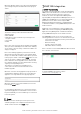
Step 5: Date and time
The system time on your controller is based on the
Universal Time Clock. The UTC is automatically set up from
an internet time server. Two server URL addresses can be
selected. The time zone can be manually adjusted to
reflect your current region. To change the time setting:
• Choose
System > Date & Time
to open the date page.
• From the
Timezone
drop-down list, choose the
Country/City.
•
In the
Time-Server
text box, enter an internet time
server.
• In the
Alternative Time-Server
text box, enter a second
internet time server
• Click
Save
to confirm the change
The controller is provided with two default Time server
URL addresses.
Step 6: Logout
To logout from the controller:
• Click Logout in the top right corner of the page to
complete the log out process and prevent unauthorized
users from accessing the controller GUI.
Note: automatic logout after 15 min of user inactivity with
redirection to the login page.