
User Guide

Getting Started with Silhouette CAMEO®
20
Using a USB Device in your Silhouette CAMEO®
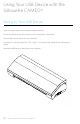
With the Silhouette CAMEO® powered on, insert your USB memory device into the slot on the side
of the machine. Load your material into the Silhouette.
With the USB memory device inserted and your cutting mat/media loaded, a USB menu will appear
on your screen. Press the USB button in the bottom left-hand corner.
From here, browse the files on your device and choose the your desired image. At the top there will
be an image of your file to help you choose the one you are looking for.
“Change Settings1” and “Change Settings2” will give you access to adjust your Cut Settings for each
tool holder. Your Cut Settings were saved when you saved your file in Silhouette Studio®, but you
can adjust them if needed. You can also choose to perform a test cut here.
When you are ready, press the Send button. Your job will cut according to your specifications.