
Getting Started Guide

-9-
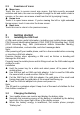
Touch the End icon to end the current conversation.
To reject an incoming call, touch the Decline icon.
Managing multiple calls
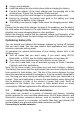
If you accept a new call when you’re already on a call, you can touch the
Answer icon to answer the current calls.
4 Using the Menus
4.1 Google Chrome
Fast, easy and secure browsing with Google Chrome.
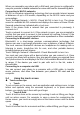
When you open Browser, your home page opens. The web address (URL) of
the current page is displayed at the top of the window.
4.2 Camera
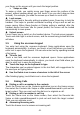
Touch the Camera icon in the main menu interface or on the home screen,
camera opens in vertical mode, ready to take a picture. In this mode, you can
touch the camera icon to take a photo, touch photo icon and slide right to
switch between photo and video
4.3 Contacts
In the contacts screen, touch menu icon and you can perform the following
operations:
Import: you can import the contacts form SIM card or storage; you can also
share the visible contacts.
Accounts: you can sync with your account.
Settings: you can set the display options in this interface.
Send contacts by Messaging: select this function, then you can choose
some contacts to share by messaging
Batch delete: Select this function, then you can mark the target contacts.
Select delete icon to delete marked contacts
4.4 Gmail
Email by Google: secure, smart, and easy to use. Touch Gmail icon to access
it. If the Google Account has not been set up, you can set up a Google
Account in a few steps.
Compose and sending an email
To compose and send an email:
1. Touch the create icon to compose a new an email.
2. Enter email address (es) for intended recipient(s).
3. Touch Menu → Attach file to attach a file.
4. After completing the email, Touch send icon to send the email.