
Owners manual
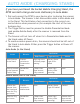


AUTO MODE (CHARGING STAND)
Auto Mode (In the Stand)
Mobile Mode (Not in the Stand)
1. Pair and connect the D750 to your device prior to placing the scanner
in Auto Mode. The Scanner is not discoverable when in Auto Mode and
in the Stand. This facilitates a fast connection to the current con-
nected device when powered on (for example the start of the new
business day).
2. The Trigger button must be pressed to disable Presentation Mode
(and enable Mobile Mode) after the scanner is removed from the
Stand.
3. The Scanner will not turn off when its in Presentation Mode and in
the Stand under AC Power.
4. To avoid excessive power drain, the scanner should not be left out of
the Stand in Auto Mode. Either press the Trigger button or Power off
the scanner.
Action Behavior
Notication
Beep Pattern Light Activity Vibrate
Place Scanner
in the Stand
Scanner
switches to
Presentation
Mode
High-high tone
conrms proper
seating*
Battery Status
Light is Dis-
abled
None
Place a barcode
in the Scanners
Field of View
Decode Bar
Code
1 Beep when
Data success-
fully scanned
Green Light
blinks (while
scanning)
None
Action Behavior
Notication
Beep Pattern Light Activity Vibrate
Remove the
Scanner from
the Stand and
press the Trig-
ger button
Scanner
switches to
Mobile Mode
None Battery Status
Light is Enabled
Enabled
Press the Trig-
ger button
Decode Bar
Code
1 Beep when
Data success-
fully scanned
Green Light
blinks (while
scanning)
Vibrate when
Data success-
fully scanned
If you have purchased the Socket Mobile Charging Stand, the
D750 can both charge and scan stationary in Auto Mode.