
Battery Communications Integration Guide


01 JUNE 2022 V 2.6 12
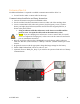
Fortress eVault & eVault MAX 18.5
No additional hardware is required to establish communication with the Fortress eVault 18.5
battery.
• You will need to make a custom cable for this setup.
NOTE: The original Fortress eVault can only communicate with the Sol-Ark AFTER a
firmware update to the eVault. New eVault units (including the eVault MAX) ship with
this update; however, older units may need the latest firmware update. To find out if
your eVault needs the update and how to perform this update, please get in touch with
Fortress Power for details.
Communications Installation and Setup Instructions
1. If using multiple batteries, designate one as master and the others as slaves per Fortress’
setup instructions. If using a single battery, skip to Step 3.
2. Connect the multiple batteries using an ethernet cable (RJ45 cable) as directed in
Fortress’ setup instructions.
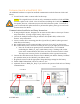
3. Create a custom cable connecting pins three (3) and five (5) ONLY (white-green and
white-blue) to the battery.
4. Pin 3 (white-green) can be connected either to pin two (2) or pin (7) on the inverter.
5. Pin 5 (white-blue) can be connected to either pin one (1) or pin eight (8) on the inverter.
a. Since the eVault has no ground pin for communications, we recommend
unchecking the “BMS_err_stop” (under battery setup > discharge tab) so that
noise on the communications cable does not cause the inverter to throw a fault.
This step is not necessary for the eVault MAX as it has a ground connection.
6. Connect this cable between the Fortress eVault’s RS485 port and the “Battery CANBus”
port (Outdoor units) or the “RS-485” port (Indoor units).
7. Program the inverter with the appropriate charge/discharge settings for this battery.
8. Enable “BMS Lithium Batt” and set its value to “04.”
9. (Optional) Turn on “BMS_Err_Stop” if you wish for the system to fault on loss of battery
communications
Inverter Port
Inverter Port
eVault MAX
eVault