
Battery Communications Integration Guide


01 JUNE 2022 V 2.6 16
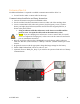
NuEnergy Lithium- Power Base M50
No additional hardware is needed to establish communications with NuEnergy Lithium batteries.
• A custom cable is required to establish communications with the NuEnergy Lithium
battery.
Communications Installation and Setup Instructions
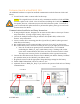
1. Create a custom cable that connects pins 6, 7, and 8 ONLY (solid green, white-brown,
and solid brown) to the battery.
2. Pin six (6) (solid green) should connect to pin six (6) on the inverter.
3. Pin seven (7) (white brown) should connect to pin five (5) on the inverter. Pin eight (8)
(solid brown) should connect to pin four (4) on the inverter.
a. On indoor units, connect pin six (6) (solid green) to pin two (2) on the inverter
instead of pin six (6).
4. Connect the cable to the “CAN” port on the NuEnergy and the “Battery CAN Bus” port
(or the “CAN” port for indoor-only units) on the Sol-Ark.
a. The cable is NOT reversible; therefore, keep track of which end of the custom
cable connects to the battery and the Sol-Ark.
5. Turn on the battery by pressing the power switch and hold for 3 seconds then a display
will light up and the system will start to switch on all the battery systems.
6. Program the inverter with the appropriate charge/discharge settings for this battery.
7. Enable “BMS Lithium Batt” and set its value to “00.”
8. (Optional) Turn on “BMS_Err_Stop” if you wish for the system to fault on loss of battery
communications.
Inverter Port