
SolisCloud Quick Start User Guide


w: solisinverters.come: ussales
@
solisinverters.com
14 - SolisCloud / Organization & Management
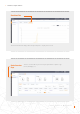
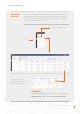
Alternatively, a guest can be added by first selecting a plant and then clicking “Modify Information”
• Enter in the email address of the guest. If
they have registered already, then nothing
else will need to be done.
• If they have not registered before, then you
will need to enter in the name of the guest
and then click “Register and Associate”. A
message will be displayed towards the top
of the screen that says “Guest registered
and associated successfully”
• The guest will receive an email from
SolisCloud saying their account is
registered. They will be given a temporary
password of 123456. The guest will be able
to log in to both the SolisCloud app and the
browser page using their email and the
temporary password. It is recommended
that they change their password after
logging in for the first time.
Adding Additional Members continued.