
User's Manual

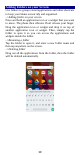
Table Of Contents
- Get Started
- Keys and Parts
- Lock and Unlock the Screen
- Notification Panel
- Arranging and Rearranging Widgets and Icons
- Adding Folders on your Screen
- Adjusting Brightness
- Changing your Wallpaper
- Make a Call
- Call Log
- Reject a Call by Sending a Busy Message
- Add a Contact
- Messaging
- Browse the Web
- Enjoy Music
- Download Applications From Android Market
- Manage Applications
- Maintenance & Safety

10
Adding Folders on your Screen
Use folders to group related applications and other shortcuts
to keep your Home screen tidy and organized.
->Adding folder on your screen
Press and hold an application icon or a widget that you want
to move. The phone then vibrates. Don't release your finger.
Drag the application icon or widget and drop it on top of
another application icon or widget. Then, simply tap the
folder to open it so you can access the applications and
widgets inside the folder.
->Renaming a folder
Tap the folder to open it, and enter a new folder name and
then tap anywhere on the screen.
->Deleting folder
Drag out all the applications from the folder, then the folder
will be deleted automatically.