
User's Manual

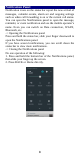
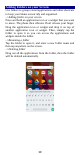
Table Of Contents
- Get Started
- Keys and Parts
- Lock and Unlock the Screen
- Notification Panel
- Arranging and Rearranging Widgets and Icons
- Adding Folders on your Screen
- Adjusting Brightness
- Changing your Wallpaper
- Make a Call
- Call Log
- Reject a Call by Sending a Busy Message
- Add a Contact
- Messaging
- Browse the Web
- Enjoy Music
- Download Applications From Android Market
- Manage Applications
- Maintenance & Safety

8
Notification Panel
Notification icons on the status bar report the new arrival of
messages, calendar events, alarm set and ongoing settings
such as when call forwarding is on or the current call status.
You can open the Notifications panel to open the message,
reminder, or event notification and see the mobile operator’s
name. Even you can switch on Data connection, WLAN,
Bluetooth, etc.
-> Opening the Notifications panel
Press and hold the status bar, slide your finger downward to
open the Notifications panel.
If you have several notifications, you can scroll down the
status bar to view more notifications.
-> Closing the Notifications panel
Do one operation of the following:
1. Press and hold the bottom bar of the Notifications panel,
then slide your finger up the screen.
2. Press BACK or Home directly.