
User Manual


GX1600Page 86
13.2 ADDING A WAYPOINT
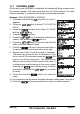
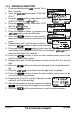
1. Press and hold down the key until “Setup
Menu” appears.
2. Press the / key to select “WAYPOINT
SETUP”.
3. Press the soft key, then select “WAYPOINT
DIRECTORY” with the / key.
4. Press the soft key, then select “ADD”
with the / key.
5. Press the soft key.
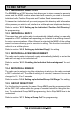
6. Enter the Waypoint Name, by pressing the
/ key to select the first letter.
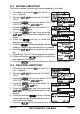
7. Press the soft key to store the first
letter and to move to the second letter in the
name.
8. Repeat step 6 and 7 until the name is shown.
Press the soft key to skip a letter if needed.
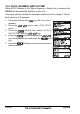
9. Press and hold the soft key, then enter the
coordinates of the waypoint POSITION, by pressing the / key to
select the first digit in the Latitude.
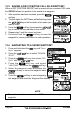
10. Press the soft key to store the first number and to move to the
second number in the position.
11. Repeat step 9 and 10 until the latitude is shown include N or S in the last
digit.
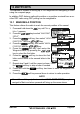
12. Press the soft key to select the first digit of the Longitude is blink-
ing.
13. Press the / key to select the first digit in the Longitude.
14. Press the soft key to store the first number and to move to the
second number in the position.
15. Repeat step 13 and 14 until the Latitude is shown
include E or W in the last digit.
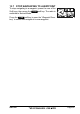
16. After all information is entered, press and hold the
soft key to store the waypoint into memory.
17. Press the soft key several times to return to radio operation.