
V-Stack
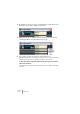
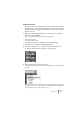
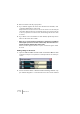
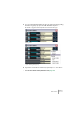
Table Of Contents

V-STACK
8 – 108 Audio effects
4. Select an effect from the pop-up menu.
5. If you want the signal to be sent to the effects before the fader, click
on the Pre fader button for the send.
With pre-fader effect sends, the amount of effect for the channel is not affected by the
volume fader. With post-fader effect sends (Pre/Post button not pressed), the amount
of effect is proportional to the channel volume, and will change with the volume fader
movements.
6. If you want to use several effects for this channel, repeat steps 3 to 6
above for the other effect sends.
• When one or several sends are activated for a channel, the Send Effects
button lights up in blue in the mixer channel strip. Click the button for a
channel to bypass (disable) all its effect sends.
When the sends are bypassed, the button is yellow. Click the button again to enable
the sends.
Making settings for the effects
1. Open the VST Send Effects window and use the Effects Master slider
to the left on the processor panel to set the input level to an effect pro-
cessor.
2. Use the send level slider or dial in the Channel Settings window or up-
per channel strip pane to control the amount of effect for the channel.