
V-Stack
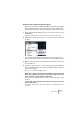
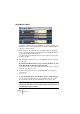
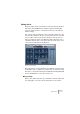
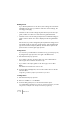


Table Of Contents

V-STACK
Audio effects 8 – 111
Routing an audio channel through insert effects
Insert effect settings are available in the Mixer (extended mode) and the
Channel Settings window. The figures below show the Channel Set-
tings window, but the procedures are similar for all three send sections:
1. Bring up the Channel Settings window or the “Inserts” pane in the ex-
tended Mixer.
In the Channel Settings, the inserts are located to the right of the channel strip.
2. Pull down the effect type pop-up for one of the insert slots, and select
an effect.
• If you hold down [Ctrl]/[Command] while selecting an insert effect,
this effect will be selected in the same insert slot for all Mixer channels.
3. Make sure that the effect is activated (the power button for the insert
slot should be lit).
4. If required, open the effect’s control panel by clicking the Edit button
and use the Mix parameter (if available) to adjust the balance between
dry and effect signal.
See page 113 for details about editing effects.
• When one or several insert effects are activated for a channel, the Insert
Effects button lights up in blue in the mixer channel strip. Click the but-
ton for a channel to bypass (disable) all its inserts.
When the inserts are bypassed, the button is yellow. Click the button again to enable
the inserts.
• To turn off an effect completely, pull down the effect type pop-up menu
and select “No Effect”.
You should do this for all effects that you don’t intend to use, to minimize unnecessary
CPU load.