
V-Stack
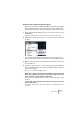
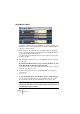
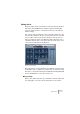


Table Of Contents

V-STACK
8 – 112 Audio effects
Using Master effects
There are four Master effect slots, available in a separate window or in
the Master section in the extended Mixer. To select and activate Master
effects, proceed as follows:
1. Either select the “Extended” mode for the Mixer and show the Master
section, or pull down the Devices menu and select “VST Master Effects”
to bring up the Master effect window.
You can also bring up the VST Master Effects window by clicking the “e” button above
the Master gain fader.
2. Pull down the pop-up menu for one of the Master effect slots and se-
lect an effect.
• Note that the last Master effect slot is “post master gain fader”, i.e. it ap-
pears after the Master Gain fader in the signal path.
This is typically used for effects such as dithering, which must be at the very end of the
signal path to give the proper result.
3. To make settings for the effect, click the Edit button to bring up its
control panel.
See page 113.
• To turn off a Master effect, select “No Effect” for the corresponding slot.
You can also bypass all Master effects by clicking the button next to the “e” button
above the Master gain fader in the Mixer. When bypassed, the button is yellow.
❐
Master effect plug-ins must be stereo in/out. If you have a plug-in in your
VST Plug-ins folder that you can’t assign as a master effect, the reason is
probably that it is a mono plug-in.