
V-Stack

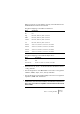
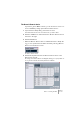
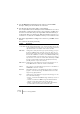
Table Of Contents

V-STACK
Remote controlling the Mixer 9 – 139
• If you find that the upper table holds too many or too few controls, you
can add or remove controls with the Add and Delete buttons to the
right of the upper table.
• If you are uncertain of which MIDI message a certain controller sends,
you can use the Learn function:
Select the control in the upper table (by clicking in the Control Name column), move the
corresponding control on your MIDI device and click the Learn button to the right of the
table. The MIDI Status, MIDI Channel and Address values are automatically set to those
of the moved control.
8. Use the lower table to specify which V-STACK parameters you want
to control.
Each row in the table is associated to the controller in the corresponding row in the up-
per table (as indicated by the Control Name column). The other columns have the fol-
lowing functionality:
Column Description
Device Clicking in this column pulls down a pop-up menu, used for determining
which device in V-STACK should be controlled. The special option
“Command” allows you to perform certain command actions by remote
control. One example of this is the selection of remote banks.
Channel/
Category
This is where you select the channel to be controlled or, if the “Com-
mand” Device option is selected, the Command category.
Value/Action Clicking in this column pulls down a pop-up menu, allowing you to se-
lect the parameter of the channel to be controlled (typically, if the “VST
Mixer” Device option is selected you can choose between volume, pan,
send levels, EQ, etc.).
If the “Command” Device option is selected, this is where you specify
the “Action” of the category.
Flags Clicking in this column pulls down a pop-up menu, allowing you to acti-
vate or deactivate two flags:
• Push Button – When activated, the parameter is only changed if the
received MIDI message shows a value unequal to 0.
• Toggle – When activated, the parameter value is switched between
minimum and maximum value each time a MIDI message is received.
The combination of Push Button and Toggle is useful for remote con-
trols which do not latch the state of a button. One example is control-
ling mute status with a device on which pressing the Mute button turns
it on, and releasing the Mute button turns it off. If Push Button and Tog-
gle are activated, the Mute status will change between on and off
whenever the button is pressed on the console.