
V-Stack

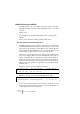
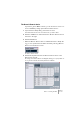
Table Of Contents

V-STACK
9 – 140 Remote controlling the Mixer
9. If needed, select another bank and make settings for this.
Note that you only need to make settings in the lower table for this – the upper table is
already set up according to the MIDI remote device.
• If you need, you can add banks by clicking the Add button below the
Bank pop-up.
Clicking the Rename button lets you assign a new name to the currently selected bank,
and you can remove an unneeded bank by selecting it and clicking the Delete button.
10.When you are finished, close the Generic Remote Setup window.
Now, you can control the specified V-STACK parameters from the MIDI remote device.
To select another bank, use the pop-up menu in the Remote Status window (or use a
control on the MIDI remote device, if you have assigned one for this).
Importing and Exporting Remote Setups
The Export button in the upper right corner of the Generic Remote
Setup window allows you to export the current setup, including the
Control configuration (the upper table) and all banks. The setup is
saved as a file (with the Windows file extension “.xml”). Clicking the
Import button allows you to import saved Remote Setup files.
• The last imported or exported Remote Setup will automatically be
loaded when the program starts or the Generic Remote control is
added in the Device Setup dialog.