
V-Stack
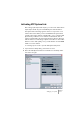
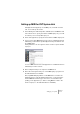



Table Of Contents

V-STACK
Setting up your system 4 – 47
Making settings that affect performance
Choosing a driver for your audio hardware
As described on page 30, it is recommended to install and use a stan-
dard ASIO driver if available for your specific hardware. Check the
manufacturers web site for the latest drivers etc.
Making audio buffer settings
Audio buffers affect how audio is sent to and from the audio hardware.
The size of the audio buffers affect both the latency and the audio per-
formance. Generally, the smaller the buffer size, the lower the latency.
On the other hand, working with small buffers can be demanding for
the computer. If the audio buffers are too small, you may get clicks,
pops or other audio playback problems.
• Under Mac OS X, you can adjust the size of the buffers on the VST Multitrack
page in the Device Setup dialog.
You may also find buffer settings in the control panel for the audio hardware.
• Under Windows, you adjust the buffer size settings in the control panel for the
audio hardware (opened by clicking the Control Panel button on the VST Mul-
titrack page in the Device Setup dialog).
The Expert settings
In the VST Multitrack panel you will find a button called “Expert…”.
Normally you will not need to touch these settings, but if you run into
problems with audio playback you should investigate whether chang-
ing these settings will help you. Generally, they allow you to adjust
how much processing power is used for recording and playing back
audio.