
V-Stack
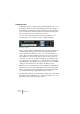
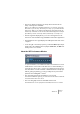



Table Of Contents

V-STACK
5 – 54 Guided tour
Transport panel
V-STACK provides you with a transport panel that allows you to con-
trol transport functions when using VST System Link. Also, when us-
ing V-STACK as a stand-alone host for VST Instruments and effects,
you can set the tempo and time signature in the transport panel, allow-
ing you to tempo-sync your instruments or effects.
You can show or hide the transport panel by selecting the corre-
sponding option from the Devices menu or by pressing [F2].
The transport panel
• On the transport panel you will find buttons for starting, stopping, fast
forward, rewind and for jumping to the beginning and end of the
project, similar to the transport controls on a conventional tape re-
corder. Above the transport buttons are the position controls and po-
sition display. You can move the project cursor position in steps of
one frame, second, tick, or sample, depending on the display format
set for the project, by clicking the + or – buttons. The position display
format depends on the display setting in the pop-up menu opened by
clicking on the arrow button to the right of the display section.
• When you click on the Click button so that it lights up, V-STACK will
play a metronome click when playing back the current project. [Ctrl]-
clicking on this button will open the Metronome Setup dialog where
you can make all settings regarding the metronome click.
• The Sync button lights up to indicate that the Online option in the VST
System Link setup is switched on. You can switch this option on or off
by activating or deactivating the Sync button.