
V-Stack
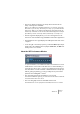



Table Of Contents

V-STACK
Guided tour 5 – 55
• The Tempo display is linked to the Tempo button and shows the
tempo currently set in V-STACK.
When you use V-STACK as a stand-alone application, you can switch off the Tempo
button and set your own tempo. This allows you to tempo sync your VST Instruments
and/or effects. When you use V-STACK with VST System Link, V-STACK “links up”
with the tempo transmitted over the network, and this will be displayed in the transport
panel. When you switch on the Tempo button, a default tempo of 120 bpm is set.
• The time signature display allows you to set a time signature for the
metronome click and when using V-STACK as stand-alone application.
• The field at the bottom right displays the VST System Link state of the
computer.
• To the far right of the transport panel you will find a MIDI input/output
activity meter. As V-STACK doesn’t play back MIDI data, the MIDI Out
activity meter is not relevant.
About the VST Performance Window
To open this window, select VST Performance from the Devices menu.
It indicates the current load on the CPU. It is recommended that you
check this from time to time, or keep it open always. Even though you
have been able to activate a number of VST Instruments in the project
without getting any warning, you may possibly run into performance
problems when adding EQ or effects.
• The upper bar graph shows the CPU (processor) load.
If the red Overload indicator lights up, you need to decrease the number of VST Instru-
ments, EQ modules and/or active effects.
• The lower bar graph shows the hard disk transfer load.
As V-STACK doesn’t record or play back from hard disk, this meter is not relevant.