
V-Stack
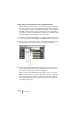
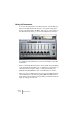


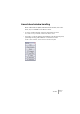
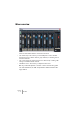
Table Of Contents

V-STACK
VST Instruments 6 – 61
Depending on the selected VST Instrument, you may also need to
send MIDI on a specific MIDI channel. For example, if the VST Instru-
ment is multi-timbral (check its documentation for details) it can play
back different sounds on different MIDI channels:
• If you are using VST System Link, select the desired MIDI channel for
the MIDI track in the host application.
• If you are using V-STACK by itself, make sure your MIDI keyboard is
connected to the correct MIDI port and sends on the desired MIDI
channel. Select this MIDI channel from the MIDI Channel pop-up in
the bottom right corner of the instrument slot. You can also select the
All option to receive on all MIDI channels. To easily stack multiple
VSTis, simply set them to receive on the same port and channel.
Now you have activated the VST Instrument and routed MIDI to it. You
need to make sure the audio from the instrument goes where it should:
5. Look at the Mixer (if it’s not shown, open it from the Devices menu).
You will find one or more additional channel strips for the instrument’s audio outputs.
VST Instrument channel strips may be in mono or stereo, depending on the instrument
(the features are the same for mono and stereo channels, but stereo channels have
“double-width” level meters, showing the level for both sides of the stereo signal).
6. Use the pop-ups at the bottom of the channel strips to route the In-
strument audio to the desired output.
• If you are using VST System Link, you should select one of the output
buses used for VST System Link – this will route the audio from the
VST Instrument into the other application.
There you will need to select the corresponding bus as input for an audio track and ac-
tivate monitoring for the track, to hear the sound.
• If you are using V-STACK by itself, you simply select the output con-
nected to your listening equipment, mixer, etc.
Try playing the instrument, from your MIDI keyboard or by playing back
the MIDI track in the other VST System Link application. You should
see the level meters moving and hear the sound of the instrument,
provided that your listening equipment is properly set up.
• You can use the Mixer to adjust level and pan, add effects and equalizing
– this is described on page 68.