
V-Stack
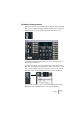
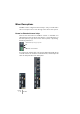
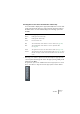
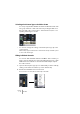

Table Of Contents

V-STACK
The Mixer 7 – 77
Selecting what to show in the extended audio channel strip
You select what to display in the upper (extended) area for each chan-
nel by using the View Options pop-up menu (the down arrow above
the fader section of each channel strips). The following options are
available:
• Selecting one of these options from the View Options pop-up in the
common panel will change the view in the upper panel globally for all
channels in the Mixer.
The global view options are also available as buttons in the upper part of the common
panel – click a button to change the view in the upper panel for all mixer channels.
Option The upper panel shows:
Narrow Nothing (narrow channel strip).
Wide Nothing (wide channel strip).
inserts Five insert effect slots.
EQs The four-band EQ, shown with the controls as sliders (see page 85).
EQ+ The four-band EQ, shown with the controls as parameter dials
(see page 85).
Sends The eight effect sends, shown with send level sliders (see page 105).
Sends+ The eight effect sends, shown with parameter dials (see page 105). Note
that the send pre/post fader switch and edit button aren’t shown in this
mode.