
V-Stack
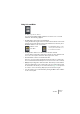
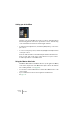
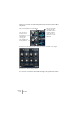
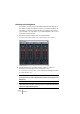
Table Of Contents

V-STACK
7 – 82 The Mixer
Basic mixing procedures
Setting volume in the Mixer
In the Mixer, each channel strip has a fader for volume control.
• The fader settings are displayed numerically below the faders, in dB.
You can click in the fader value fields and enter a volume setting by typing.
• To make fine volume adjustments, hold down [Shift] when you move
the faders.
• If you hold down [Ctrl]/[Command] and click on a fader, it will auto-
matically be set to position 0.0 dB.
About the level meters for audio channels
When playing VST instruments in V-STACK, the level meters in the
Mixer show the level of each instrument channel. If the peak level of
the audio goes above 0dB, the numerical level indicator will then
show a positive value (i.e. a value above 0dB).
V-STACK uses 32 bit floating point processing internally, so there is
virtually limitless headroom – signals can go way beyond 0dB without
introducing distortion. Therefore:
❐
Having higher levels than 0 dB for individual channels and groups is not
a problem in itself. The audio quality will not be degraded by this.
This is however not the case for the buses in the VST Outputs window
(including the Master bus, which can be shown in the Mixer as well)! In
the output buses, the floating point audio is converted to the resolution
of the audio hardware. In the audio domain, the maximum level is 0dB.
Levels higher than 0 dB will cause the clip indicators above the meters
for each bus to light up. If the clip indicators light up for a bus, this in-
dicates actual clipping – digital distortion which should be avoided.
❐
If the Clip indicator lights up for the Master bus or any other output bus,
reset the clip indicator by clicking on it, and lower the level until the indi-
cator no longer lights up.