
V-Stack
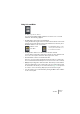
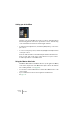
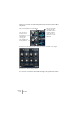
Table Of Contents

V-STACK
The Mixer 7 – 87
Using the EQ curve display
In the Channel Settings window you can also make EQ settings in the
graphic EQ curve display above the parameter section.
• Double-click (or click and drag) in the display to add a new “EQ point”
(activate an EQ module).
Each point in the curve corresponds to an EQ module, as indicated by the number next
to the point. Up to four points can be added, one for each module.
• Click a point and drag it to change the EQ curve.
This allows you to change the Gain and Frequency parameters at the same time. The
knobs turn accordingly when you drag points.
• If you press [Ctrl]/[Command] while dragging, only the Gain parame-
ter will be set.
• If you press [Alt]/[Option] while dragging, only the Frequency para-
meter will be set.
• If you press [Shift] while dragging, only the “Q” parameter will be set.
• To deactivate an EQ module double click its point in the display or
drag its point outside the display.
EQ bypass
As soon as one or more EQ modules are activated, the EQ indicator
next to the fader in the channel strip will light up in green.
• Clicking this lets you momentarily turn the whole EQ section off (by-
pass) for the channel, useful for comparing the sound with and with-
out EQ.
When the EQ is in Bypass mode, the EQ button is yellow.