
V-Stack
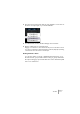
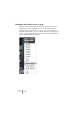
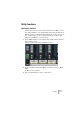
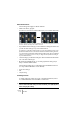
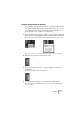
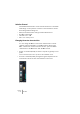

Table Of Contents

V-STACK
7 – 94 The Mixer
What will be linked?
The following rules apply for linked channels:
• Fader levels will be “ganged”.
The relative level offset between channels will be kept if you move a linked channel fader.
The three channels shown are linked. Pulling down one fader changes the levels for
all three channels, but keeps the relative level mix.
• Any individual channel settings you have made before linking will remain until
you alter the same setting for any of the linked channels.
For example, if you link three channels, and one of them was muted at the time you ap-
plied the Link Channel function, this channel will remain muted after linking. However,
if you mute another channel then all linked channels will be muted. Thus, the individual
setting for one channel is lost as soon as you change the same parameter setting for
any of the linked channels.
• Channel settings you make after linking the channels will affect all linked chan-
nels of the same channel type.
• By holding down [Alt]/[Option], you can change parameter settings sepa-
rately for channels that are linked.
The following settings are not affected by the Link Channel function
(i.e. they remain individual for each channel):
• Insert effect settings
• Pan
• Output routing
Unlinking channels
To unlink channels, simply select any of the linked channels, and se-
lect “Unlink Channels” from the Mixer context menu.
❐
It is not possible to remove individual channels from Link status. If you
want to make individual settings to a linked channel, press [Alt]/[Option]
when changing the setting.