
V-Stack
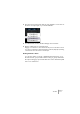
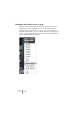
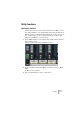
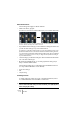
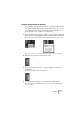
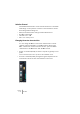
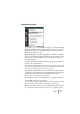

Table Of Contents

V-STACK
7 – 98 The Mixer
Loading Mixer settings
Load Selected Channels
To load Mixer settings saved for selected channels, proceed as follows:
1. Select the same number of channels in the new project to match the
number of channels you saved settings for in the previous project.
For example, if you saved settings for six channels, then select six channels in the Mixer.
• Mixer settings will be applied in the same order as they appear in the
Mixer, when saved.
Thus, if you save settings from channels 4, 6 and 8 and apply these settings to chan-
nels 1, 2 and 3, the settings saved for channel 4 would be applied to channel 1, the
settings saved for channel 6 to channel 2 and so on.
2. Right-click (Win) or [Ctrl]-click (Mac) the mixer panel to open the con-
text menu, and select “Load Selected Channels”.
A standard file dialog appears, where you can locate the saved file.
3. Select the file and click “Open”.
The channel settings and their corresponding output bus routing is applied to the se-
lected channels.
❐
If you select to apply Mixer settings to fewer channels than you saved, the
order of the saved channels in the Mixer applies – i.e. the saved channels
that are “left over” and not applied will be the channels with the highest
channel numbers (or furthest to the right in the Mixer).
Load Master, Sends and Synths
As these settings are global for the whole Mixer, no channels need to
be selected.
1. Right-click (Win) or [Ctrl]-click (Mac) the mixer panel to open the con-
text menu and select "Load Master, Sends and Synths".
A standard file dialog appears, where you can locate the saved file.
2. Select the file and click “Open”.
The Master setup, Master mix level, VST output levels, VST instruments and all send
and Master effect assignments and settings are applied to the project.