
Operator's Manual
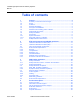
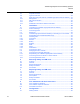
Table Of Contents
- T-Mobile High-Speed Internet Gateway Operator Manual
- 1 Preface
- Table of contents
- List of figures
- List of tables
- 2 ETSI environmental and CRoHS guidelines
- 3 ANSI safety guidelines
- 4 Product description
- 4.1 Product overview
- 4.2 4G/LTE and 5G radio support
- 4.3 4G and 5G band and antenna support
- 4.4 Subscriber Interfaces
- 4.5 Environment
- 4.6 Physical dimensions
- 4.7 Physical interfaces
- 4.8 Typical connection
- 4.9 Mesh Wi-Fi 6 System with the T-Mobile High-Speed Internet Gateway
- 4.10 Management
- 4.11 QR code information
- 4.12 Power
- 4.13 Additional functional and feature information
- 5 Installation
- 5.1 Unpacking the T-Mobile High-Speed Internet Gateway
- 5.2 Product Warnings
- 5.3 Connecting power
- 5.4 Starting up
- 5.5 Downloading the T-Mobile Broadband App
- 5.6 Checking LCD
- 5.7 Connecting to Wi-Fi
- 5.8 Managing the Wi-Fi network
- 5.9 Connecting Accessories (Optional)
- 5.10 Repositioning the T-Mobile High-Speed Internet Gateway
- 5.11 Connecting devices for Wi-Fi or a mesh network
- 5.12 Connecting Ethernet LANs
- 6 Removing battery and SIM card
- 7 Replacing battery and SIM card
- 8 FCC statements and label instructions
- 9 Configuration
- 10 Glossary
- Customer document and product support

T-Mobile High-Speed Internet Gateway Operator
Manual
ChapterTitleVariable
Issue: DRAFT Nokia 3TG-01275-AAAA-TCZZA 5
1.9 Documents
The T-Mobile High-Speed Internet Gateway Customer Release Notes lists customer
documentation for the T-Mobile High-Speed Internet Gateway. The documents are
available from the Nokia Documentation Center.
Procedure 1 To access individual documents
Individual PDFs of customer documents are accessible to registered users through the
Documentation Center website.
1 Navigate to https://documentation.nokia.com and click Login in the top right corner of the
page.
The Support portal page opens.
2 Enter the username and password for your account.
3 Choose FastMile 5G Gateway from the list of products in the Product drop-down menu.
4 Configure the search criteria as needed (for example, by release, content type, or issue date)
and click Search.
5 Click on the PDF document icon to access a document.
Note — If you do not have an account, click New User or contact your
Nokia representative.
Note 1 — If you have not already logged in from the Support portal, you
will be prompted to log in now.
Note 2 — Customer documentation is available at initial release for
customers with applicable Service Level Agreements or from your Nokia
support representative. Documentation is generally available to all
customers at general availability release.