
Owners manual

55
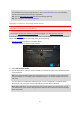
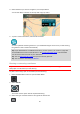
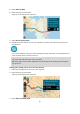
3. Select the Place you want to navigate to, for example Home.
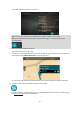
Your chosen Place is shown on the map with a pop-up menu.
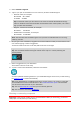
4. To plan a route to this Place, select the drive button:
A route is planned and then guidance to your destination begins. As soon as you start driving,
the guidance view is shown automatically.
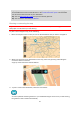
Tip: If your destination is in a different time zone, you see a plus (+) or a minus (-) sign and
the time difference in hours and half hours in the arrival information panel. The estimated
time of arrival is the local time at your destination.
Tip: You can add a stop to a route that you have already planned.
Tip: You can save a route using My Routes.
Planning a route using coordinates
Important: In the interest of safety and to avoid distractions while you are driving, you should
always plan a route before you start driving.
To plan a route using a pair of coordinates, do the following:
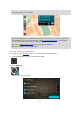
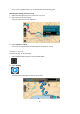
1. Select the Main Menu button to open the Main Menu.
2. Select Search.
The search screen opens with the keyboard showing.
3. Select the type of search button to the right of the search box.