
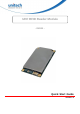
Quick Start Guide



4
© 2022 Unitech Electronics Co., Ltd. All rights reserved.
Unitech is a registered trademark of Unitech Electronics Co., Ltd.
All product and company names are trademarks, service marks, or registered trademarks of their respective owners
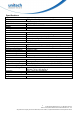
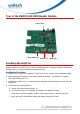
Tour of the RM100 UHF RFID Reader Module
This section describes the main components and features of the interface board.
Installing the IndyTool
First of all, install the IndyTool before connecting the interface board to a PC. It is possible for
multiple versions of IndyTool to co-exist on a single system, so long as a unique install path is
used for each, such as the default installation directory.
Installation Procedure
1.
Double click the IndyTool installer file, IndyTool v2.6.msi, to launch the installation wizard.
2.
When prompted, designate the desired installation directory. The default is: [Program
Files]\IMPINJ\IndyTool v2.6
3.
Installation includes the C++ runtime libraries and adds a desktop shortcut to the IndyTool
application.
4.
To Start the IndyTool application:
a.
Double click the desktop shortcut, or
b.
Use the Start Menu. For example, if installed to the default directory:
Click Start, select All Programs, IMPINJ, Impinj IndyTool v2.6, and click IndyTool.
c.
Open the IndyTool installation folder and double click IndyTool.exe.
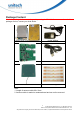
GPIO Port
UART Port
Power Inlet
Micro USB Port