
User's Manual

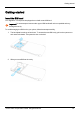
Table Of Contents
- Introduction
- Safety
- Your phone
- Getting started
- Explore
- Apps
- Vertu Services
- Text entry
- Calls
- Contacts
- Messaging and email
- Music
- Maps and navigation
- Personalising your phone
- Social networks
- Managing accounts
- Browser
- Camera
- Gallery
- Office tools
- Connectivity
- Phone management
- FAQs
- Questions
- How can I extend the battery life of my phone?
- Do I need a Google™ account to use my phone?
- How can I reduce my data costs, especially when abroad?
- How do I transfer music from my computer to my phone?
- How can I listen to my iTunes music library on my phone?
- How do I setup an email account on my phone?
- How do I transfer contacts to my phone?
- How do I set my music as ringtone?
- How do I change the font size on my phone?
- How do I check if I have the latest software updates on my phone?
- Why have I got no connectivity?
- Why is my internal storage less than advertised?
- How do I protect my phone from unauthorised use?
- How do I find the IMEI number of my phone?
- How can I clear the log of my calls or the list of people I have contacted fr...
- Why does my phone get warm?
- How do I set a photo as my wallpaper?
- Can I still use Google Maps if I do not have a data connection?
- Accessories
- Specifications
- Care of your phone
- Safety and warranty

Getting started
Insert the SIM card
Your Signature Touch phone is equipped to work with a nanoSIM card.
!
Important: Do not attempt to insert another type of SIM as this will not be compatible and may
damage the cavity.
To avoid damaging the SIM card or your phone, follow these steps carefully:
1.
The back plate is made up of two doors. To access the nanoSIM cavity, pull out the quarter turn
and rotate it clockwise. This opens the door on the left.
2.
Slide your nanoSIM into the cavity.
Getting started
© 2015 Vertu Corporation Limited. All rights reserved. 10