
User guide



109
VTB USER GUIDE
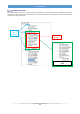
Can Open Configurator interface, appear as a standard Windows style application, with classics menu and tool bar.
Then there is a configuration panel, that shows the actual configuration with the name of the file and the various
nodes included.
The other section can show a summary of the characteristics of the selected PDO.
Tool bar
New Configuration - From menu File → New
It creates a new configuration file. The previous one is closed requesting a confirm for saving.
Open Configuration - From menu File → Open
It opens an existing configuration.
Save Configuration - From menu File → Save
It saves the current project. Also create the VTB - linkable file and makes an analysis on the number
of PDOs and the transmission time needed to manage them.
View File – From menu Opzioni → View File
Allow to see the real configuration file that will be linked in the VTB project
Add Node from EDS – From menu Modify → Add Node
Adds a CanOpen node, taking the basic configuration from an EDS file.
Add Node from Library – From menu Library → Add from Library
Adds a CanOpen node, using a ready made configuration, saved in the library.
Modify Node – From menu Modify→ Modify Node
Allow to edit/change the node id.
Delete Node – From menu Modify → Delete Node
Cut out the selected node from the configuration.
Copy Node – From menu Modify → Copy Node
Copy the selected node to the clipboard, with all its characteristics, ready to be pasted as a new node
Paste Node – From menu Modify → Paste Node
Add the selected and copied node into the configuration, allowing to set a new node id.
Export in Library – From menu Library → Export in Library
Exports the selected node to the library, making it usable for other similar projects.
Modify Library – From menu Library → Modify Library
Opens the library in edit mode, for modify some of the saved node.