
Continuous Feed Duplex Printe Operator Guide

PROBLEM SOLVING ERROR CODES
Xerox 495 Continuous Feed Duplex Printer Operator Guide Page 9-19
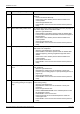
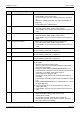
05-01 Toner collector full If you would like to change this consumable now then go to the
Consumables view and press the Change button to replace the
toner collector.
05-02 No toner collector The toner collector has either shifted or has not been installed (see
"Replacing the toner collector" on page 8-24).
05-04 Toner shutter A open 1. Open the right printer door.
2. Close the lid to toner supply port A.
3. Close the right front door.
4. Press RESET on the touch screen and then set the printer to
ready.
05-05 Toner shutter B open 1. Open the right and left printer doors.
2. Close the lid to toner supply port B.
3. Close the right center and right front doors.
4. Press RESET on the touch screen and then set the printer to
ready.
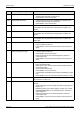
06-01 Developer [R2a] end of life If you would like to change this consumable now then go to the
Consumables view and press the Change button to replace devel-
oper [R2a].
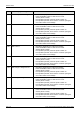
06-02 Developer [R2b] end of life If you would like to change this consumable now then go to the
Consumables view and press the Change button to replace devel-
oper [R2b].
08-02 Fuser Door open 1. Open the right and left printer doors.
2. Close the Fuser Door.
3. Close the right and left printer doors.
4. Press RESET on the touch screen and then set the printer to
ready.
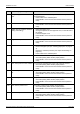
08-03 Fuser Door open (during printing or
emergency stop)
1. Open the right and left printer doors.
2. Close the Fuser Door.
3. Close the right and left printer doors.
4. Press RESET on the touch screen.
5. Press FORWARD/REVERSE on the autoload panel to match
the correct perforation number.
6. Select FOLD-OUT/-IN on the autoload panel to match the
correct fold-out/-in position of the paper.
7. Press RESET on the touch screen and then set the printer to
ready.
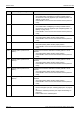
08-04 Paper tension lever released The Paper tension lever may have been released when removing a
paper jam.
1. Open the right stacker door.
2. Set the paper tension lever to match the paper in use.
'Standard' is for ordinary printing. 'Weak' is for when printing
with special paper.
3. Close the right stacker door.
4. Press RESET on the touch screen and then set the printer to
ready.
Code Display Message Procedure