
Printer User Guide Phaser 2135





User Guide
13
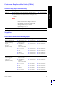
Print Modes
From the printer’s front panel:
1. Use the Menu buttons to scroll to PostScript Menu.
2. Use the Item buttons to scroll to Print Mode.
3. Use the Value buttons to select the desired Print-Quality Mode.
4. Press the Enter button to save the changes.
5. Press the On-line button to exit the Menu System.
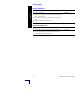
Note
You can select the Print-Quality mode in the front panel or
software driver. Refer to the Advanced Features and
Troubleshooting Manual for driver instructions, or see the
on-line help in the driver.
The software driver always overrides the front panel settings.
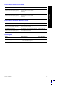
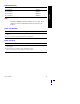
Print Modes
Standard Recommended for basic office printing, 600 x 600 dpi.
Enhanced Makes very fine lines, sharp edges, and small text
sharper; 600 x 1200 dpi.
Features