
User Manual
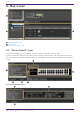
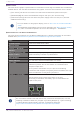
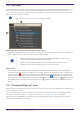
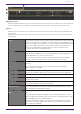
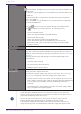
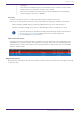
Table Of Contents
- Yamaha LAN Monitor for Win
- Table of contents
- 1. Introduction
- 2. Installing and uninstalling Yamaha LAN Monitor
- 3. Starting and exiting Yamaha LAN Monitor
- 4. Yamaha LAN Monitor screen structure
- 5. Network settings on the computer
- 6. Basic operation
- 7. Menu bar
- 8. Toolbar and display area
- 9. Map screen
- 10. List screen
- 11. Configuring the device
- 12. Update the firmware
- 13. Import/Export the CONFIG
- 14. Resources
- 15. Troubleshooting
-

9.2. Tree view
This area shows the Yamaha switch, and Dante-enabled devices detected by Yamaha LAN Monitor. The
device name and the number of connected devices (agent devices only) are shown at the right of the
icon; when you click the open/close button [>] located at the left of the icon, the devices connected
below that agent device are shown.
This will not function until a Yamaha switch is found.
❶ Sorting order reference node selection pull-down menu
Selects the Yamaha switch that you want to appear at the top of the tree view. These are shown in
their connection order relative to the selected Yamaha switch.
• Only the Yamaha switch for the current network will appear in the sorting
order reference node selection pull-down menu.
• When starting Yamaha LAN Monitor, the Yamaha switch closest to the
computer will serve as the starting point for the tree view.
❷ Tree view
This area shows the Yamaha switch, and Dante-enabled devices detected by Yamaha LAN Monitor.
If a device that was saved in the snapshot is no longer found, or if the connection port is different,
a red error icon ( ) is shown for the agent that is above the corresponding device. If a device that
was not saved previously is newly found, a blue notification icon ( ) appears on the agent that is
above the corresponding device. Of the Dante-enabled devices, a green flag icon ( ) appears on the
PTP Leader (Primary) device, and an orange flag icon ( ) appears on the PTP Leader (Secondary)
device.
9.3. “Connected Devices” view
When you click a Yamaha switch shown in the tree view, a list of the connected devices is shown in the
“Connected Devices” view.
The “Connected Devices” view is updated each time that the time specified in “Information update
interval of the selected agent” - “Status of each function” of “Basic Settings” has elapsed.
When you click the [Refresh] button of the “Connected Devices” view, information for the devices
connected to the agent is refreshed.
9. Map screen
36 | Yamaha LAN Monitor for Win User Guide