
User Manual
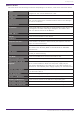
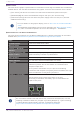
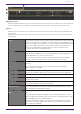
Table Of Contents
- Yamaha LAN Monitor for Win
- Table of contents
- 1. Introduction
- 2. Installing and uninstalling Yamaha LAN Monitor
- 3. Starting and exiting Yamaha LAN Monitor
- 4. Yamaha LAN Monitor screen structure
- 5. Network settings on the computer
- 6. Basic operation
- 7. Menu bar
- 8. Toolbar and display area
- 9. Map screen
- 10. List screen
- 11. Configuring the device
- 12. Update the firmware
- 13. Import/Export the CONFIG
- 14. Resources
- 15. Troubleshooting
-

❶ “Update Time:”
Shows the date and time at which information was last captured for the devices that are connected
to the Yamaha switch or Yamaha wireless LAN access point that is selected in the “Tree” view.
❷ List
Shows a list of information for the devices that are connected to the agent that is selected in the
“Tree” view.
Depending on the device, some items will not be shown. Click the title row to sort according to the
item clicked.
“Port” Shows the port number of the agent to which the device is connected. The
switch port numbers that support the stack function are displayed in the
format “<Stack ID>.<Port number>”. If a Dante device has multiple logical
ports for a single physical port, they are all shown with the same port
number. On Yamaha Dante-enabled devices, there is no need to pay
particular attention to non-Dante ports.
“VLAN ID”
Shows the VLAN ID joined by the port to which the device is connected.
When multiple VLAN IDs are set, each VLAN ID will be separated with a
comma. Maximum of 9 (trunk=8, access=1).
The access port (A), and trunk port (T) will appear after the VLAN ID.
However, (A) will not appear when only the access port is in use.
“Snapshot” Specifies whether each device is included as a target of the snapshot
function.
Users can switch settings only for the devices other than agents.
Agents cannot be changed.
“Device Type” Shows an icon that indicates the type of device. If device is terminal that
except Dante-enabled device, you can switch the icon that is displayed.
[Device Label] You can enter a character string to identify the individual device.
[Model name] Shows the model name of the device. Some devices allow you to input and
edit the device name.
[Comment] Allows you to freely assign a comment. You can enter information about
the on-site cabling or the role of the device.
[Manufacturer] Shows the manufacturer name of the device. Some devices allow you to
input and edit the manufacturer name.
[Power consumption
(W)]
Enter the maximum power consumption of the device over a range of 0.0 –
90.0.
Enter the maximum power consumption of the connected device, when
known, to obtain an accurate view of the sum of the maximum power that
might be supplied to the connected device.
If [Power consumption (W)] is not entered, the maximum power supply
defined for the power supply class will be used to calculate the [Sum of
power might be supplied].
9. Map screen
Yamaha LAN Monitor for Win User Guide | 37