
User Manual
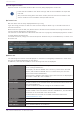
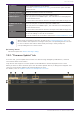
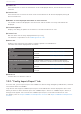

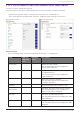
Table Of Contents
- Yamaha LAN Monitor for Win
- Table of contents
- 1. Introduction
- 2. Installing and uninstalling Yamaha LAN Monitor
- 3. Starting and exiting Yamaha LAN Monitor
- 4. Yamaha LAN Monitor screen structure
- 5. Network settings on the computer
- 6. Basic operation
- 7. Menu bar
- 8. Toolbar and display area
- 9. Map screen
- 10. List screen
- 11. Configuring the device
- 12. Update the firmware
- 13. Import/Export the CONFIG
- 14. Resources
- 15. Troubleshooting
-

“IP address”
Shows the IPv4 address of the device.
As with the “Connected Devices” view, you can use the opens the Web
browser button.
“Firmware revision” Shows the firmware revision of the device.
“Date and time of last
CONFIG import”
Shows the date and time of the last CONFIG import.
When you perform a CONFIG import, the information to be displayed in
this area will be saved.
This information will also be saved in the exported “Label Settings file”.
“CONFIG file of last
import”
Shows the file path of the last imported CONFIG file.
When you perform a CONFIG import, the information to be displayed in
this area will be saved.
This information will also be saved in the exported “Label Settings file”.
“Comment” Allows you to freely assign a comment. You can enter information about
the on-site cabling or the role of the device.
This is the same as the “Comment” used in the “Connected Devices” view.
When using the snapshot function, as well as the “Connected Devices” view, if a
device saved in the snapshot is no longer found, the corresponding device is shown
in red. If a device that had not been saved previously is newly found, the
corresponding device is shown in blue.
❽ “Setting” button
This button opens the “Device Settings” dialog.
10.2. “Firmware Update” tab
From this tab, you can update the firmware for devices being managed by LAN Monitor, and view
information about the firmware.
Only devices that support firmware update from LAN Monitor will be displayed in this screen.
When you select a device and then press the “Firmware Update” button, a dialog box will appear that
confirms the firmware update of all selected devices at once.
For details, refer to “Update firmware on multiple units at once”.
10. List screen
Yamaha LAN Monitor for Win User Guide | 43