
User Manual
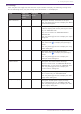



Table Of Contents
- Yamaha LAN Monitor for Win
- Table of contents
- 1. Introduction
- 2. Installing and uninstalling Yamaha LAN Monitor
- 3. Starting and exiting Yamaha LAN Monitor
- 4. Yamaha LAN Monitor screen structure
- 5. Network settings on the computer
- 6. Basic operation
- 7. Menu bar
- 8. Toolbar and display area
- 9. Map screen
- 10. List screen
- 11. Configuring the device
- 12. Update the firmware
- 13. Import/Export the CONFIG
- 14. Resources
- 15. Troubleshooting
-

Port settings
Click the [Port settings] tab, and then click a port number to display the following setting items.
Of the following items, only the setting items marked with ✓ are displayed.
Items
SWX2110/
SWX2110P
series
SWX2200
series
Descriptions
Basic functions ✓ ✓
Configures the basic functions of the port.
Click the [Settings] button to display the “Basic
functions” dialog box.
QoS ✕ ✓
Configures the QoS settings.
Transmit shaping and receive policing are shown
only for SWX2200-24G.
They are not shown for SWX2200-8PoE or
SWX2200-8G.
Click the [Settings] button to display the “QoS”
dialog box.
Tag VLAN ✓ ✓
Configures the tag VLAN settings.
Click the arrow ( ) to display the [Settings]
button.
Click the [Settings] button to display the “Tag
VLAN” dialog box.
Multiple VLAN ✕ ✓
Configures the multiple VLAN settings.
Click the arrow ( ) to display the [Settings]
button.
Click the [Settings] button to display the
“Multiple VLAN” dialog box.
Frame counter ✕ ✓
Configures the frame counter settings.
There are three items for SWX2200-8PoE and
SWX2200-8G, or five items for SWX2200-24G.
Click the [Settings] button to display the
“Frame counter” dialog box.
PoE supply class ✕ ✓
Configures the PoE supply class settings.
This is shown only for SWX2200-8PoE.
Click the [Settings] button to display the “PoE
supply class” dialog box.
PoE power supply ✓ ✕
Configures the PoE power supply settings.
This is displayed only for the SWX2110P-8G.
Click the [Settings] button to display the “PoE
power supply” dialog box.
11. Configuring the device
Yamaha LAN Monitor for Win User Guide | 51