
User Manual
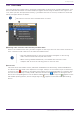
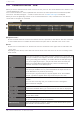
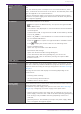
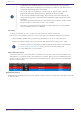
Table Of Contents
- Yamaha LAN Monitor for Mac
- Table of contents
- 1. Introduction
- 2. Installing and uninstalling Yamaha LAN Monitor
- 3. Starting and exiting Yamaha LAN Monitor
- 4. Yamaha LAN Monitor screen structure
- 5. Network settings on the computer
- 6. Basic operation
- 7. Menu bar
- 8. Toolbar and display area
- 9. Map screen
- 10. List screen
- 11. Configuring the device
- 12. Update the firmware
- 13. Import/Export the CONFIG
- 14. Resources
- 15. Troubleshooting
-

• If multiple Dante-enabled devices are connected in a daisy-chain, the other
devices are also shown together at the same port number as the device that is
connected immediately below the switch.
• Of the settings in the above list, the settings of “Device Type”, [Device
Label], [Model name], [Manufacturer], [Keepalive], [Power supply
interruption] and [Destination URL] can be moved to another computer by
using the [Setup] menu commands [Export Label Settings] and [Import Label
Settings].
Note that the “Label Settings file” generated by this software version cannot
be imported to the software version 1.3.6 or earlier.
• Note that a snapshot notification will not be provided even if the keepalive
status changes from “UP” to “DOWN.”
List entry
To enter information in a list, or edit entered information, double click a cell.
Entries up to the following character counts and within the following ranges are permitted.
• [Device Label], [Model name], [Comment], [Manufacturer] : Up to 128 characters
• [Power consumption (W)] : Up to the first decimal place within a range of 0.0 – 90.0
Content entered into the [Device Label] and [Comment] fields are shared with
“Device Settings” dialog box. Changing entries in one will change the
corresponding entry for the other.
Show connection status
A snapshot saves the connected state of the devices at the time that you started monitoring.
Subsequently, if a device saved in the snapshot is no longer found, the corresponding device is
shown in red. If a device that had not been saved previously is newly found, the corresponding
device is shown in blue.
❸ [Refresh] button
Refreshes the information for the other agents or devices that are connected to the agent selected
in the tree view.
9. Map screen
38 | Yamaha LAN Monitor for Mac User Guide