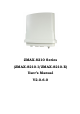
ZMAX-8210 Series (ZMAX-8210-I/ZMAX-8210-E) User’s Manual V2.0.6.
Copyright This user’s manual and the software described in it are copyrighted with all rights reserved. No part of this publication may be reproduced, transmitted, transcribed, stored in a retrieval system, or translated into any language in any form by any means without the written permission of Z-Com Corporation. About This Manual This manual explains Z-Com outdoor ZMAX-8210 Customer Premise Equipment (CPE), how to build the infrastructure centered on the ZMAX-8210 and proposals when using this CPE.
Content Chapter 1 Introduction........................................................................................................ 1 INTRODUCTION ........................................................................................................................... 1 APPEARANCE .............................................................................................................................. 1 KEY FEATURES ...................................................................................
Appendix A Specifications................................................................................................. 31 Appendix B Technical Terms ............................................................................................ 37 Appendix C ASCII ............................................................................................................. 39 Appendix D SSH Settings..................................................................................................
Figure Figure 1 ZMAX-8210................................................................................................................. 1 Figure 2 ZMAX-8210 ports........................................................................................................ 2 Figure 3 Wireless Point-to-Point Outdoors................................................................................. 3 Figure 4 Wireless Point-to-multipoint Outdoors ....................................................................
Table Table 1 ZMAX-8210 Default Factory Settings .......................................................................... 8 Table 2 ZMAX-8210-I Spec..................................................................................................... 31 Table 3 ZMAX-8210-E Spec.................................................................................................... 33 Table 4 Technical Terms .........................................................................................................
Chapter 1 Introduction Introduction Thank you for choosing the ZMAX-8210 Series Customer Premise Equipment (hereafter called CPE). Compliant with the innovative IEEE802.16-2004 and working at the licensed 3.5GHz with efficient modulation, this outdoor CPE gives wireless ISP providers today’s fastest pathway to new markets and revenue.
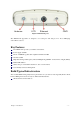
Figure 2 ZMAX-8210 ports The ZMAX-8210 appearance is designed to be water-proof and dust-proof for most challenging environments outdoors. Key Features The ZMAX-8210 provides you with the solid features. Power supply via POE Based on WiMAX together with compliant with 802.16d-2004 Work at 3.
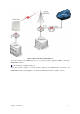
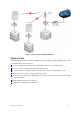
Figure 3 Wireless Point-to-Point Outdoors Under this structure, the ZMAX-8210 acts as a customer premise equipment (CPE), connecting a WiMAX Base Station. Wireless Point-to-multipoint Outdoors Under this structure, acting as a customer premise equipment, the ZMAX-8210 is connected to the WiMAX Base Station, allowing ISP to cost-effectively build infrastructure in a matter of hours.
Figure 4 Wireless Point-to-multipoint Outdoors Typical Case The high-quality performance enables the ZMAX-8210 to gain widespread acknowledgements. It is able to undertake tasks in various situations.
Chapter 2 Basic Installation System Requirement Before installing the ZMAX-8210 Customer Premise Equipment, make sure your system meets these requirements A PC coupled with 10/ 100Base-TX adapter Configure the computer with a static IP address of 192.168.1.x (x cannot be 1) and 255.255.255.0 for the Subnet Mask A Web browser for configuration such as Microsoft Internet Explorer 6.0 or above, or Netscape Navigator 4.
Connect the other end of the Ethernet cable to the ZMAX-8210. Tighten the water-proof connector. A ground wire connects the ZMAX-8210. Ground Note: To keep the ZMAX-8210 antenna intact, a plastic coat is over the antenna. Remove the coat wile using it.
Be sure to your ZMAX-8210 is connected the ground wire, preventing something unexpected. Antenna Installation 16dBi built-in antenna is placed in the ZMAX-8210, so you need not install antenna. The ZMAX-8210-E needs an external antenna. You should choose your antenna as your need. Warning: Keep your ZMAX-8210 associated with the antenna away from power line, lamp, electrified wire fence or anything others electrified.
Chapter 3 Basic Settings Default Factory Settings We’ll elaborate the ZMAX-8210 default factory settings. You can re-acquire these parameters by resort button. If necessary, please refer to the “the way to restore default factory settings. Table 1 ZMAX-8210 Default Factory Settings Feature Factory Default Settings User Name admin Password password Device Name Devicexxxxxx(xxxxxx represents the last 6 digits of MAC address) Spanning Tree Protocol Enable IP Type:STATIC IP Address:192.168.1.
Figure 5 Safety Alert Clicking “Yes” ushers you into the login. Figure 6 Login Note: Make sure the PC IP address need to be matched the device. For instance, the ZMAX-8210 is 192.168.1.1, and your PC IP should be 192.168.1. X. Enter the default name “admin” in the username field and “password” in the password field。Clicking “ Login now ” will Chapter 3 Basic Settings usher you into the ZMAX-8210 management interface.
Figure 7 ZMAX-8210 General Information Device Name Clicking“Basic Settings” ,you’ll see the ZMAX-8210Name. You may assign any device name to this CPE. This name is only used by the CPE administrator for identification purposes. Unique, memorable names are helpful, especially if you are employing multiple access points on the same network. This name is composed of 15 characters with 0-9, A-Z, a-z or “-“.
By default, the ZMAX-8210 CPE is Devicexxxxxx(xxxxxx represents the last 6 digits of MAC address). No figure is allowed to represent initial. When WINS undertakes interpreting, make sure the PC IP address need to be matched the CPE. For instance, the ZMAX-8210 is 192.168.1.1, and your PC IP should be 192.168.1. X. Bridge and Router Mode The ZMAX-8210 is capable of working under bridge and router modes. Opening“IP Settings”will navigate you to the configuring mode page.
If you fail to obtain IP address for the ZMAX-8210, the CPE will turn to the client address for use. Wireless Parameters Opening“Radio Settings can lead you to the ZMAX-8210 wireless parameters. You can set what you desire. Figure 10 ZMAX-8210 Wireless Parameters Base Station ID:This field allows you to enter the Base Station ID you want to connect, to establish a tie between this CPE and the Base Station. Duplex Mode:This field allows you to have the options of TDD and HFDD modes.
devices. Encryption:This field provides encryption options. Note: When the communication is established, the encryption shall be completely identical between the ZMAX-8210 and the Base Station, IR Bit:This field identifies whether forward “initial ranging data”。 Note: There shall be in complete accord in the parameters between IR Bit and Base Station.
The parameters set in the ZMAX-8210 shall match the ones in the WiMAX Base Station, when the tie is established. Using “ping” to check whether the communication is sound. Take an example as follows. Ping 192.168.1.1 to check the communication between the ZMAX-8210 and PC. 192.168.1.200 check the communication between the ZMAX-8210 and WiMAX Base Station. If you fail to ping, please see Troubleshooting.
Chapter 4 Advanced Configuration Router Mode The ZMAX-8210 is able to carry out router function. Opening“IP Settings”navigates you to router mode interface. Figure 12 ZMAX-8210 Router Mode Settings You can set proper IP addresses for WAN and LAN. Refer to the following infrastructure.
Figure 13 Wireless Router Mode Any IP Under the router mode, the ZMAX-8210 provides Any IP,enabling you to enter whatever IP addresses legally or illegally so as to carry out various tasks, relieving your trouble of memorizing IP address. Take the steps below. From the“IP Settings”,Choose“Router”and enable“Enable Any IP”. Figure 14 Any IP Note: You can assign whatever IP Address, however the default gateway and DNS shall be set. A legal IP means access to the internet is available via this IP Address.
DHCP Server Under the router mode, the ZMAX-8210 can also serve as a DHCP server, responsible for assigning IP addresses to the devices connected to the infrastructure. From the“IP Settings”choose“Router”. The way to assign IP Address turns “Static IP to “DHCP Server”. Clicking“Apply”to enable “DHCP Server”.
From the“Adjust for Daylight Saving Time”,you have the option of daylight saving time or not. Finally, clicking “Apply” to complete your time server settings. Note: It is only when the ZMAX-8210 have access to the internet that the time server can take effect. HTTP Redirect Enabled HTTP Redirect and enter the IP address that the HTTP Redirect specifies.
Figure 18 HTTP Redirect From PC1,PC2 or PC3, you want to login the internet-- http://www.sohu.com,but the web browsers will turn to http://www.zcom.com.tw;If from the PCs to browse http://www.sohu.com anew, this time you’ll see the exact page. Note: Make sure there is an access from the ZMAX-8210 to the internet, before enabling HTTP Redirect. HTTP Redirect will take effect every two hours. Therefore, from the client, you’ll see the forced page instead of your designed.
Chapter 5 Management View the ZMAX-8210 Basic Information From the“Information”,the ZMAX-8210 provides the basic information about this CPE. All is read-only. For the detailed information, refer to Basic Settings and Advanced Configuration.。 Figure 19 Basic Information View Statistics Information From the“Statistics”,the ZMAX-8210 provides information about sending or receiving packets out of both the Ethernet and wireless ports.
Figure 20 ZMAX-8210 Statistics Information The Ethernet port provides the packet information from the Ethernet port. The wireless port provides the packets information from the wireless port. Password You can change password to managing your ZMAX-8210. Figure 21 Password Change The length of password is no more than 19 characters. You can restore the default password by enabling “Restore Default Password”. Upgrade Firmware The ZMAX-8210 provides two ways to upgrade firmware.
Click“Upload”to enable the file to be loaded to your ZMAX-8210. Reboot your ZMAX-8210 and check whether the firmware has been upgraded in the Basic Information. Upgrade firmware via FTP Enter the command ftp 192.168.1.1,admin and password. After successful commanding, enter“put mercury.rmt”. If the upgrade is successful, the information will be shown as below. C:\>ftp 192.168.1.1 Connected to 192.168.1.1. 220 (vsFTPd 1.1.3) User (192.168.1.1:(none)): admin 331 Please specify the password.
C:\>ftp 192.168.1.1 Connected to 192.168.1.1 220 (vsFTPd 1.1.3) User (192.168.1.1:(none)): admin 331 Please specify the password. Password: 230 Using binary mode to transfer files. Login successful. Have fun. ftp> get mercury.cfg 200 PORT command successful. Consider using PASV. 150 Opening BINARY mode data connection for /mnt/ramd/ mercury.cfg (11411 bytes). 226 File send OK. ftp: 收到 11411 字节,用时 0.00Seconds 11411000.00Kbytes/sec. ftp> put zmax8200.cfg 200 PORT command successful. Consider using PASV.
The file name shall be mercury.cfg. Restore Factory Default Settings The ZMAX-8210 provides two ways to restore the default factory settings. Restore the factory default settings via web: From the “Restore Factory Default Settings”, clicking “ Restore ” will restore your ZMAX-8210 default settings. Restore the factory default settings via “Restore Button”. When the ZMAX-8210 power adapter is connected to this device, press “Default Button”for about over10seconds.
Figure 26 Putty Settings From the “Connection”, select “SSH”; From the “Preferred SSH protocol version”, select“2”; From the “Encryption cipher selection policy”, make“3DES”the top position.
Figure 27 Putty settings 2 Click Open and a page will open like below: Figure 28 SSH Settings 3 Enter admin and password in the separate field. For help information, enter” help” command.
Chapter 5 Management - 27 -
Chapter 6 Troubleshooting Frequently Asked Question (FAQ) Q 1. In what way to get to know the ZMAX-8210 MAC address? MAC Address distinguishes herself by the distinct identity among networking devices. There are two ways available to know the address. • In the rear of the ZMAX-8210, posted the MAC Address. Refer below. Figure 29 ZMAX-8200 MAC Address • Through the ZMAX-8210 web-based management, you can view the address from the Basic Information. Q 2.
Figure 30 ZMAX-8210 Wireless Network Connection Properties Q 5. In what way to restore my ZMAX-8210 to the factory default settings? Refer to Restore Factory Default Settings. Q 6. How to re-gain my ZMAX-8210 password if it slips off my mind? Refer to Restore Factory Default Settings. Q 7. How I could know my PC has connected to the ZMAX-8210? • Click“Start”>“Run” • Enter “cmd” • Enter “ping 192.168.1.
Figure 31 ZMAX-8210 Ping Chapter 6 Troubleshooting - 30 -
Appendix A Specifications This appendix provides technical terms for the ZMAX-8210 CPE. Table 2 ZMAX-8210-I Spec 802.16d-2004 Outdoor CPE Main Features as follows: ¾ ¾ ¾ ¾ ¾ ¾ ¾ Operates at 3.5GHz Built-in 16dBi directional panel antenna Power over Ethernet (PoE, non-802.3af compliant) Resistant design for outdoor environment (IP65) SNMP support RoHS Signal Status Display by LED Line Module ZMAX-8210-I Description ZMAX-8210-I works at 3.5GHz, compatible with 802.16d-2004 standard, designed as CPE..
(Automatic Repeat Request) PHS Yes (Payload Header Suppression) Site Survey Yes Signal Indicators Radio Standard IEEE 802.16-2004, HiperMAN/WiMAX Fixed Profile Modulation OFDM modulation, 256FFT points; BPSK, QPSK, 16-QAM, 64-QAM RF Frequency 3.4 to 3.6 GHz in steps of 250kHz Bandwidth 1.75MHz, 3.5MHz & 7MHz Duplexing Method TDD and HFDD Spectral Efficiency 5 bits/sec/Hz (64-QAM uncoded) Supported Frame Lengths 2.5,4,5,8,10 & 20 ms Tx Maximum output Power 20.
QPSK 3/4 -89.5 16QAM 1/2 -86.5 16QAM 3/4 -83.0 64QAM 1/2 -79.0 64QAM 3/4 -77.0 Management Secure WEB Management Yes SNMP Yes SSH Yes CLI Yes F/W Upgrade Web/TFTP/FTP Interface LAN One 10/100-BaseTX RJ-45 Ethernet Port Antenna Type (Built-in) 16dBi pannel antenna Default Button Yes Ground Interface Yes Led 1-Power, 1-WLAN, 1-LAN, 5-Signal Indicator Physical Dimension 277(L)x277(W)x80(H) Weight 1.5 Kg Power Consumption 10W Power Supply PoE,802.
Main Features as follows: ¾ ¾ ¾ ¾ ¾ ¾ ¾ Operates at 3.5GHz Built-in 16dBi directional panel antenna Power over Ethernet (PoE, non-802.3af compliant) Resistant design for outdoor environment (IP65) SNMP support RoHS Signal Status Display by LED Line Module ZMAX-8210-E Description ZMAX-8210-E works at 3.5GHz, compatible with 802.16d-2004 standard, designed as CPE..
Modulation OFDM modulation, 256FFT points; BPSK, QPSK, 16-QAM, 64-QAM RF Frequency 3.4 to 3.6 GHz in steps of 250kHz Bandwidth 1.75MHz, 3.5MHz & 7MHz Duplexing Method TDD and HFDD Spectral Efficiency 5 bits/sec/Hz (64-QAM uncoded) Supported Frame Lengths 2.5,4,5,8,10 & 20 ms Tx Maximum output Power 20.
SNMP Yes SSH Yes CLI Yes F/W Upgrade Web/TFTP/FTP Interface LAN One 10/100-BaseTX RJ-45 Ethernet Port Antenna One N Type (Female) Interface Default Button Yes Ground Interface Yes Led 1-Power, 1-WLAN, 1-LAN, 5-Signal Indicator Physical Dimension 277(L)x277(W)x80(H) Weight 1.5 Kg Power Consumption 10W Power Supply PoE,802.
Appendix B Technical Terms Table 4 Technical Terms Terms Description IEEE 802.16 IEEE 802.16 is a wireless networking standard adopted in December, 2001. BS BS is the abbreviation of Base Station, a basic component in WiMAX infrastructure. SS SS is the abbreviation of Subscriber Station, a user-client in WiMAX infrastructure. CPE CPE is the abbreviation of Customer-Premises Equipment, acting as a client. DHCP 、 DHCP DHCP, Dynamic Host Configuration Protocol .
device and other devices. Web-based Graphical A web-based management. You have access to the site via Netscape or Microsoft User Internet Explorer, monitoring and managing your device. Interface (GUI) WINS Server WINS. Windows Internet Naming Service is a server process for resolving Windows-based computer names to IP addresses. If a remote network contains a WINS server, your Windows PCs can gather information from that WINS server about its local hosts.
Appendix C ASCII WEP can be configured with a 64-bit or 128-bit Shared Key (hexadecimal number or ACSII). As defined, hexadecimal number or ACSII is represented by 0-9, A-F or a-f; likewise, ACSII is represented by 0-9, A-F, or a-f and punctuation. Every can consist of two-digit hexadecimal.
5 35 M 4D e 65 } 7D 6 36 N 4E f 66 ~ 7E 7 37 O 4F g 67 8 38 P 50 h 68 Appendix C ASCII - 40 -
Appendix D SSH Settings Table 6 SSH Settings get set √ √ √ √ √ √ √ √ √ √ √ del keyword descriptions system --- system setting version --- system firmware version devicename --- system name macaddr --- system MAC address routemode --- system route mode anyiponrout ---system any ip on route e mode time √ √ daylight --- Daylight Saving Time of saving time server now --- Time of system √ √ server --- Time server of system √ √ zone --- Time zone of Time server √ √ √
√ √ gateway --- system gateway √ √ dns primary --- system primary DNS √ √ dns --- system secondary DNS secondary √ √ IP start --- IP range start √ √ IP End --- IP range end √ √ IP Range --- IP range netmask Netmask √ √ √ √ iptype --- system dhcp client √ √ ipaddr --- system IP address √ √ netmask --- system network mask √ √ gateway --- system gateway √ √ dns primary --- system primary DNS √ √ wireless --- system wireless port dns --- system secondary DNS secon
write √ √ --- SNMP Writecommunity community √ √ √ √ √ √ bsid --- WiMAX Base Station ID √ √ duplex --- WiMAX Duplex Mode √ channel ---wireless Center Frequency √ cpsize --- WiMAX CP Size bandwidth --- wireless Band Width √ description wimax √ ---SNMP System Description --- wireless setting --- wireless transmit Frame √ √ √ √ √ framelengh Length encryption --- wireless Encryption Mode --- √ WiMAX ir-bit parameter status --- wireless status wireless √ password --- sy