
Owner`s manual



Deva IV and Deva V Owner’s Manual
Chapter 3
13
Chapter 3
Settings for Recording
Once the input cables are connected, there are many setup decisions to be made. This section describes
those settings and where they are found in the menus. There is no one way to setup a DEVA correctly, nor
do any of the settings described here have to be done in any certain order.
Storing the Data
The size of the hard drive determines how much data can be stored.
Selecting a partition
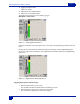
Main Menu > My DEVA > Internal Hard Drive > Current Folder
Depending on the size of your hard drive, the number of folders or partitions varies. To select a partition
do the following:
1. Press the My DEVA button on the Main Menu screen.
The My DEVA Screen appears.
2. Press the Internal Hard Drive button.
The Internal Disk Utilities screen appears.
3. Press the Current Folder button.
the Internal Disk Folders screen appears.
4. Press the folder name you want to record on.
The folder’s button turns white.
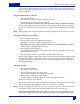
The Internal Disk Folders screen also allows you to erase the contents within a section, rename the folder,
and
change the view order of the folders.
Selecting the Sample Rate
Main Menu > DEVA Setup > Internal Sample Rate
The DEVA V and VI can record with sampling rates of 44100 Hz, 47952 Hz, 48000 Hz, 48048 Hz, 88200
Hz, 96000, 96096 Hz. In addition, the Deva V can record at 19200 Hz.
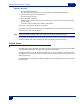
1. Press the DEVA Setup button on the Main Menu screen.
The DEVA Setup Screen appears.
2. Press the Internal Sample Rate button.
The Internal Sample Rate screen appears. All currentl
y supported sampling rates can be selected from
this screen,
3. Press sampling rate you want to record with.
The selected sample rate button turns white.
Note: Af
ter changing sampling rates timecode may need to be re-jammed.
About 19200 Hz Recording
Recording at 19200 Hz requires a lot of processing power from the Deva V. When recording at this high
sampl
e rate, you need to disable any mixer cross points that are not needed. Usually you will need to limit
the number of individual tracks to eight. Before any performing any recording at this sampling rate, you