
Owner`s manual


Chapter 3 Deva MIX-12 Owner’s Manual
12
Using a USB Keyboard
A standard USB keyboard can be used to help get to the EQ and compression screen without the
Mix-12. The following are keys that enable quick access to the EQ and compression screen.
Channel Screen
When in the Channel Screen, the following keys on the USB keyboard have special functions:
❏ E - Goes to the EQ of the current channel. This functions as the EQ button on the Mix-12.
❏ B - Goes to the Bus of the current channel. This functions as the Bus button on the Mix-12.
When in the EQ Screen, the following keys on the USB keyboard have special functions:
❏ E - Functions as the EQ button on the Mix-12.
Deva Mix-12 Key shortcuts
When in the EQ screen of the Deva, the following keys on the Mix-12 perform the described
function.
❏ EQ Knobs (Low, Mid, High) - Always control the levels of the first three bands of the
currently selected channel.
❏ Jog Wheel - Controls the frequency or Q of the EQ.
❏ Enter - Toggles the EQ bypass.
❏ U - Resets the EQ to the default ‘unity’ settings.
❏ CH - Selects the next band of the EQ.
❏ Up Arrow - Changes the current band’s filter type.
❏ EQ - Pressing EQ once places you into the EQ screen. Pressing EQ a second time places you
into the EQ Memory Screen. Pressing EQ a third time, exits out of the EQ Screen.
❏ F - Sets the entry mode to Frequency.
❏ Q - Sets the entry mode to Q
❏ L - Sets the entry mode to Level.
The current bands entry mode is indicated on screen by a yellow highlight indicating level,
Frequency, or Q. Using the Jog Wheel in the entry mode, automatically sets the entry mode to
Frequency.
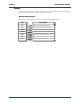
In the EQ Memory Screen, the following keys are used:
❏ CH - toggles memory through load mode/save mode.
❏ 1 through 5 - Pressing numbers 1 through 5 on the keyboard loads or saves the respective
memory.
❏ EQ - exits out of the EQ Screen.
NOTE:
Press the EQ button of another channels causes the EQ to change to the channel.