
User Manual


21
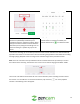
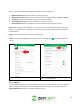
This scroll bar shows you which recordings were
saved on a specified day and allows you to
navigate through the selected recordings. Above
that, you will notice a selection which shows the
date that you are pulling the recordings from. To
view a recording on a specific day, tap on this
menu.
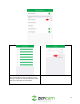
When this option is selected you will be shown a
calendar. When a recording is available, the
calendar will denote a ( ) icon below the date.
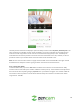
To access the recording, tap on the date you want to access from the calendar and it will automatically
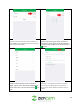
populate in the viewer on the next screen. Once the recording has populated in the viewer the recording
will begin playing. Playback of the recording can be scrolled through via the provided scroll bar.
Note: There are 2 arrows on the top and bottom of the scroll bar which show you where you are at in
the timeline of the recording. The timeline runs in four-hour increments ranging from 00:00 – 00:00.
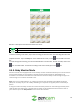
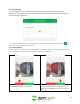
There is also a list feature which allows the user to more efficiently access recordings stored on either
the cloud or on a microSD card. To access the list feature, tap on the list ( ) icon in the playback
interface. The following screen will appear: