
User Manual



34
4.11.1. Hard Factory Reset
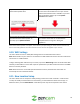
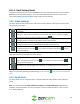
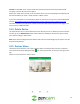
To perform a hard factory reset, locate the Reset button on the back of the camera. Press and hold the
Reset button until the camera begins to reset and release. When the green LED on the front of the
camera starts flashing the camera will be ready to add to the new network.
4.12. Video Settings
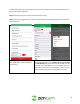
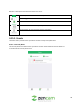
This menu allows the user quick access to their camera settings. Below is a description of all the video
settings listed in this menu:
This option allows the user to switch between SD (standard) and HD (High Definition)
resolutions.
This option allows the user to adjust the brightness, contrast, hue, and saturation of the
camera. To adjust, tap on the selection you would like and use the +/- buttons to adjust.
To reset the image quality back to default, tap on the ( ) icon.
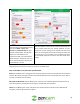
This option allows the user to flip or rotate the image. A flip can be performed in a left
and right motion. A rotation can be either in a 90° or 180° rotation.
This option allows the user to turn night vision on or off while the camera is in operation.
Turning off night vision will enable/disable the IR LEDs for your camera.
This option allows the user to turn the volume of the speaker on the camera up or down.
To adjust the volume, use the ( ) to turn down the volume and use the ( ) icon to
turn the volume up.
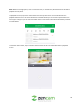
Swipe left on the carousel to view more video settings:
This option allows the user to turn the volume of the microphone on the camera up or
down. To adjust the volume, use the ( ) to turn down the volume and use the ( )
icon to turn the volume up.
This option allows the user to enable or disable the indicator light located on the front of
the camera. The indicator light is the small green or red LED on the front of the camera.
When you have finished setting your video settings, tap on the back ( ) icon to return to the previous
menu.
4.13. Email Alerts
This menu allows users to setup email alerts. Email alerts will be directly related to motion detection
events.
Note: You must have both the Motion Detection Snapshots and Email Notifications toggle switches
enabled to receive email alerts. For more information on how to enable the features, refer to section
4.5.2. Motion Detection.