
User Manual



40
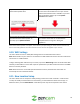
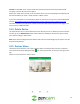
Tap on the Play icon in the middle of the screen, or the icon located in the time bar. You can also
zoom in on an object in the recording by tapping on the icon located in the playback screen.
To scroll through the recording, use the included slide bar in the time bar. To listen to audio, click on the
icon to enable audio. To view the recording in full screen mode, tap on the icon. The app also
allows you to share the event. To share an event, tap on the icon located beneath the playback
screen. Lastly, to download the event to your mobile device, tap on the icon located at the bottom
of the screen.
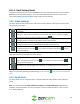
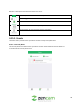
4.15.1.2. System
The system menu allows users quick access to system notifications. These are notifications that are
provided to the user through the app or by the developer. To view a system notification, tap on the
System icon located at the top of the events menu. In this menu you will see all relatable system
notifications pertaining to your account.
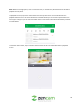
To view, tap on the notification. To exit the system alerts menu, tap on the ( ) icon in the upper left-
hand corner of the screen.
4.15.2. Account
The Account menu allows users to view and manage their Zencam account as well as provide important
information regarding Zencam policies and other relatable data.
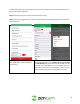
4.15.2.1. Manage Account
The Manage Account menu allows users to modify or edit their account’s profile picture as well as
update their name, username, password, country, and email address associated with their Zencam
account.
Note: This menu will only effect Zencam accounts and not specific devices. To edit any information on a
device, you will need to access the device settings menu for the device. For more information on the
device settings menu, refer to section 4.5. Device Settings.
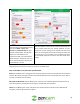
4.15.3. My Plans
The My Plans menu allows users to view the status of their cloud plans that are associated with their
accounts. Below is a screenshot of this menu: