
User Manual

45
4.15.17. Data Sharing
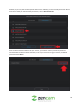
This menu allows users to share data analytics related to their account. Data analytics will collect
information that will help improve our products and enhance your experience with our service. To
disable this feature, toggle the Share Data Analytics switch to the off position.
4.15.18. Log Out
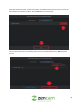
This option allows users to log out of their Zencam accounts. To log out of your Zencam account, tap Log
Out and tap OK to exit.
5. Desktop Support Software
The Desktop support software allows the user to view their Zencam devices from anywhere on a laptop
or PC. If you are setting up your camera for the first time using the Zencam Desktop software, please
follow the instructions as outlined in this instruction set.
Setting up your camera on the software
5.1.1. Zencam Desktop Software Installation To download the Zencam Desktop software, visit
zencam.com/application
5.1.2. Setting Up Your Camera This section shows the user how to add a camera to their Zencam
Desktop software using various methods.
5.1.3. Basic Operation and Overview This section will highlight the various features and functionalities
of the Zencam Desktop software once the camera has been added to the software.
5.1.1. Desktop Support Software Download
To download the Zencam Desktop software, visit zencam.com/application and download the software
to your computer. Once the installation is complete, click Enjoy Now to start using the software.
5.1.2. Setting Up Your Camera
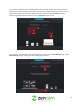
If you have not already registered for a Zencam account, you will need to do so before adding a camera
to the software. To register for a Zencam account, click on Sign Up and fill in the requested information
into the form.
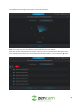
Once a Zencam account has been registered, log into your account using your account credentials.
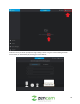
When you have logged into the software, click on Add in the center of the screen or the Add Device icon
in the upper right-hand corner.