
User Manual


52
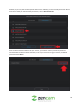
Below is a description of the controls listed:
Snapshot: Click this button to take a snapshot of the live feed. The
picture taken will be saved by default to the PC Files folder.
Manual Record: Click this button to manually record live video. The
video will be saved by default to the PC Files folder.
Mic: Click this button to enable and control the microphone
settings on your device.
Speaker: Click this button to control the speaker volume on your
device.
SD: Click this button to switch from high-definition video, to
standard definition video.
PTZ: Click this button to control the camera’s built-in Pan/Tilt/Zoom
functionality. NOTE: Not applicable for all products.
Multi-View Modes: Click on either selection to view a single
channel feed or multiple channel feeds. This option allows the user
to view up to 16 different camera feeds simultaneously.
Full-Screen: Click this button to enable full screen mode on a
selected camera feed.
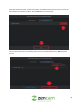
To access your device’s settings, locate the settings icon in the upper right-hand corner of your
screen.