
User manual







Copyright © 2007 by Futures, Inc. All rights reserved
11
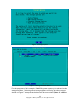
Immediately after the User License Agreement is the authentication challenge.
It will look like the following figure.
Figure - 2 Authentication Challenge
The first line contains the host system’s internal hardware clock date/time
setting. The next 3 lines contain 10 groups of 4 characters each. These values
have different content each time the authentication is presented.
The bottom box is for the user to enter a response to the challenge. Asterisks
(*) will be echoed in the place of characters entered. The authentication
phrase is dependent upon the specific contents of the CD, which are customer
specific. A supplemental instruction sheet is provided to each customer giving
specific instructions for authentication.
After typing the authentication phrase, press <Enter> or use the <Tab> key (if
needed) to ensure the [OK] button is highlighted (as in the image). Then press
the <Enter> key.
After the system receives the authentication phrase, the screen will then clear.
If the authentication phrase was correct, the user will be asked to wait a
moment (“One moment…please”) and then the boot process will proceed.
If the authentication fails, (incorrect authentication phrase, pressing the
<Esc> key or the <Cancel> button), the system will not start. To re-attempt
system startup, the user must re-cycle power to the computer.
After authentication, the next screen is the Time Reference screen. This
screen will time out and proceed with the current time in 30 seconds if there is
no user interaction. This step allows setting WhirlWind’s system time. The
time is obtained from the RTC (Real Time Clock) chip on the machine. There is
no way for the product to know what time zone or locality it represents. The
software is set to UTC (Zulu) time zone.