
User manual







Copyright © 2007 by Futures, Inc. All rights reserved
16
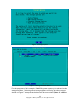
Figure - 8 WiFi Device Selection (Bronze – Gold Versions)
The recommended way to terminate a Kismet session is with “Q” = <shift>+<q>
in the main Kismet screen. Kismet will shutdown cleanly. Removal of a WiFi
network adapter during collection will also cause Kismet to exit and return to
the WiFi Device Selection screen.
Also, it has been observed that some WiFi network adapters may cause the
system to freeze/lock if removed, depending on the system hardware and WiFi
device combination.
Once device selection is completed, the system will start a local system Kismet
server and connect to it, using a local Kismet client, which will display the
information to the F10 screen.
For Bronze – Gold versions, please continue by going to the section:
After General Configuration
Follow-on Configuration for Platinum only:
The next screen, “WiFi Chipset Selection”, requires the user to select the WiFi
chipset(s) for which the wireless cards connected to the system contain. Only
chipsets from the cards connected to the system and recognized will be shown.
A WiFi chipset refers to the specific wireless radio microchips utilized within a
wireless card. It is recommended that wireless devices be placed in the system
at this time and [TryAgain] or [Re-Identify Cards] may be selected to update
all chipsets and wireless card count. The screen will show all identified
chipsets as well as the number of cards for each (see the following WiFi Chipset
Selection example figures 9-11); chipset name(s) on the left and the
corresponding number of cards on the right. If the user selects a single
chipset, they will only have access to the WiFi cards that contain the matching
chipset. This is a good option if the system has a built in wireless card that the
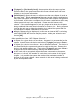
user does not wish to use. This screen will provide several options to the user: