
User manual







Copyright © 2007 by Futures, Inc. All rights reserved
17
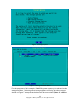
[TryAgain] or [Re-Identify Cards]: these options allow the user to place
wireless cards in the system and have this screen refresh itself with new
chipset or card count information
[MultiChipset]: allows the user to utilize more than one chipset of cards at
the same time. This is experimental because certain chipset combinations
may cause the system to lock-up or freeze when multi-chipset configuration
is performed. At this time a complete list of known combinations which may
cause system lock-up is not completed. Please use this feature with
caution. If the system happens to lock-up, please write-down the chipsets
being combined and email that information to Futures, Inc. During a system
lock-up the only way to help the situation is to reboot the system and not
try the specific chipset combination at this time.
Multiple chipsets may be displayed; in this case an internal WiFi card along
with PCMCIA/USB WiFi devices may be present. Make your selection and
choose [OK].
Other possibilities from “WiFi Chipset Selection”:
A chipset for a given device is not shown – because it is not attached to the
system. Attach/insert the device and select [TryAgain] and press <Enter>.
A chipset for a device is not shown – but is attached/inserted. The device is
not identified by the system and cannot be used at this time. Remove the
device, and supply another one. Then select [TryAgain] and press <Enter>.
A future version of WhirlWind may identify the unknown device.
A WiFi card with a recognized chipset has been connected to the system,
but upon a “refresh” the number of cards does not increase for the given
chipset – it is possible the system has reached the maximum number of
devices for the given chipset. More research in this area is being conducted
by the development team.