
User manual






Copyright © 2007 by Futures, Inc. All rights reserved
21
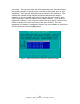
The following options are presented to the user:
Toggling the use of WiFi cards on/off. * (Asterick) means the card is
enabled for use.
[OK]: Utilize the enabled cards for use by the system.
[BACK]: Return to the previous screen.
[Re-Identify Cards]: Have the system re-identify all the cards in the system
and refresh the current display with the updated information. This should
be used if a new card has been placed in the system that needs to be
identified.
Figure - 13 WiFi Device Selection (Platinum Version)
There are multiple, possible presentations from “WiFi Device Selection”:
Your device is not shown – because it is not attached to the system.
Attach/insert the device and select [Re-Identify Cards] and press <Enter>.
Your device is not shown – but is attached/inserted. Your device is simply
not identifiable by the system. It cannot be used. Remove the device, and
supply another one. Then select [Re-Identify Cards] and press <Enter>.
Multiple devices may be displayed. Internal WiFi along with PCMCIA/USB
WiFi devices are probably present. Adjust the enabled/disabled card list
and select [OK].
Once the user selects [OK], the system will display a WiFi card to channel
assignment form: WiFi Card Channel Assignments.
WiFi Card Channel Assignments (Platinum Version)
All U.S. channels are assigned to every card in an order to provide best
coverage of channels during channel hopping. The user is free to change the
channel assignments as they see fit. Allowed channels are 1-14 (complete
world channels). Any cards given the exact same channel assignments (order
included) will be used for channel splitting across cards to provide a faster
coverage of channels. This is done automatically by the system. A user may
highlight the different card/channel assignments by using the up and down