
AP+4 Wireless Router/Access Point User Guide


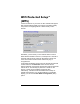


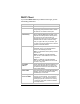

Parameter Select or enter . . .
Disable WPS
Select this check box to turn off WPS. By
default, WPS is enabled.
Self PIN Number
(Display only) Automatically generated AP+4
PIN. For a different number, click Regenerate
PIN.
Push Button
Configuration
(PBC)
To have the AP+4 search for another WPS-
enabled device for 2 minutes, click Start PBC.
The network device you want to configure must
be turned on, have WPS enabled, be within
range of the AP+4, and – as noted above –
must have a hardware or software pushbutton.
After you click Start PBC, go to the device and
press or click its pushbutton.
Apply Changes
Click to save your settings.
Reset
Click to return to the defaults.
Client PIN Number
Enter the network device's PIN number. Look
for a sticker on the device or a display showing
the PIN.
Start PIN
Click this button to initiate the security setup
process. The device must be turned on, have
WPS enabled, and be within range of the AP+4
– approximately 150 feet , but this may vary
greatly depending on the environment.
To confirm that WPS automatic configuration has been
successful, on the menu select Wireless, and on the Wireless
Basic Settings page click Show Active Clients:
Chapter 4. Wireless Configuration 35