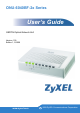
ONU-6040BF-2x Series User’s Guide GEPON Optical Network Unit Version 1.00 Edition 1, 5/2009 www.zyxel.
ENGLISH 2
Introduction The ONU-6040BF-2x is an optical network unit (ONU) that allows you to enjoy high-speed Internet access over optical networks. The ONU-6040BF-2x comes with one fiber, four 10/100 Mbps RJ-45 ports and one coaxial CATV connector. No configuration is required. On the ONU-6040BF-2x, all device configuration is done remotely by the OLT (Optical Line Terminal). Once you have connected the hardware, you are ready to enjoy Internet access.
a. Hold the ONU-6040BF-2x upright, push the top cover forward with the LEDs (lights) facing you, then lift up the top cover to remove it.
b. Wind the fiber-optic cable around the tray in the ONU-6040BF-2x. c. Connect the fiber-optic connector into the PON port. d. Put the top cover back. To avoid possible eye injury, do NOT look into an operating fiber-optic module’s connector. 4 3 2 1 2. LAN: Use the included Ethernet cable to connect the LAN port to a computer.
3. CATV: Use a coaxial cable to connect the CATV port to a television or set-top box with an F-connector. Overly tightened coaxial cable may affect transmission quality and/or break the connector pin. 4. POWER: Use the included power adaptor to connect this power socket to an appropriate power source. Check the LEDs (Lights) • The PWR LED turns steady on when you connect the ONU-6040BF-2x to the power supply. • The PON LNK LED turns on when the fiber connection is available.
The following table describes the LEDs in detail. Label Color PWR Green On The ONU-6040BF-2x is getting proper input power voltage and is turned on. Red On The ONU-6040BF-2x is receiving abnormal input power voltage. Off The power is off or there is a power failure. PON LNK Status Description Green On Connection to the optical network is up. Off Connection to the optical network is down. Blinking The ONU-6040BF-2x is trying to register to an OLT.
Label Color Status LAN 1 ~ 4 Yellow On Description The LAN port is connected to an Ethernet device at 100 Mbps. Blinking The ONU-6040BF-2x is sending or receiving data at 100 Mbps. Green On The LAN port is connected to an Ethernet device at 10 Mbps. Blinking The ONU-6040BF-2x is sending or receiving data at 10 Mbps. CATV Off No Ethernet device is connected to the LAN port. Green On The ONU-6040BF-2x is receiving video signals. Off The ONU-6040BF-2x is not receiving video signals.
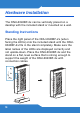
Hardware Installation The ONU-6040BF-2x can be vertically placed on a desktop with the included stand or mounted on a wall. Standing Instructions Place the right panel of the ONU-6040BF-2x (when facing the LEDs) onto the included stand until the ONU6040BF-2x fits in the stand completely. Make sure the label names of the LEDs are displayed correctly and not upside-down.
Wall-mounting Instructions Complete the following steps to hang your ONU6040BF-2x on a wall. 1. Select a position free of obstructions on a sturdy wall. 2. Drill two holes large enough for the M4 tap screws. Make sure the distance between the centers of the holes is 140mm. Be careful to avoid damaging pipes or cables located inside the wall when drilling holes for the screws.
3. Do not insert the screws all the way into the wall. Leave a small gap of about 0.5 cm between the heads of the screws and the wall. 4. Make sure the screws are snugly fastened to the wall. They need to hold the weight of the ONU6040BF-2x with the connection cables. 5. Align the holes on the back of the ONU-6040BF-2x with the screws on the wall. Hang the ONU-6040BF2x on the screws. The following are dimensions of an M4 tap screw and masonry plug used for wall mounting.
Troubleshooting 1. The PWR light is not on when I connect power to the ONU-6040BF-2x. • Check that the power source is turned on. • You might be using the wrong power adaptor. Use the included power adaptor only. • If you are using the correct power adaptor, disconnect and re-connect the power adaptor to turn on the ONU-6040BF-2x again. • If the PWR light is still not on, use a different power outlet. • If the problem continues, contact your local vendor. 2. The PON light is off.
NOT attempt to replace the optical cable/ connector yourself. 3. The CATV light is off. • Check the PON light. If the PON light is off, see 2 The PON light is off. If the PON light is on, contact your service provider and make sure the video signals can be transmitted successfully. 4. The CATV light is on but no video is displayed. • Check the coaxial cable connection between the CATV port and your TV or set-top box. • Check that the TV is turned on. • Check the coaxial cable. Make sure it is not broken.
Specifications Specifications are accurate at the time of writing. Feature Specification Dimensions (mm) 181 (Wide) x 123.4 (Deep) x 41 (High) Weight < 1 kg Interface PON One PON port Compliant with IEEE 802.
Feature Specification Operation Temperature 0º C ~ 45º C Storage Temperature -30º ~ 60º C Operation Humidity < 95% RH Storage Humidity < 95% RH Safety EN60950 -1 EMI FCC Part 15 Class B, CE-EMC Class B Safety Warnings • Do NOT use this product near water, for example, in a wet basement or near a swimming pool. • Do NOT expose your device to dampness, dust or corrosive liquids. • Do NOT store things on the device. • Do NOT install, use, or service this device during a thunderstorm.
the product where anyone can walk on the power adaptor or cord. • Do NOT use the device if the power adaptor or cord is damaged as it might cause electrocution. • If the power adaptor or cord is damaged, remove it from the power outlet. • Do NOT attempt to repair the power adaptor or cord. Contact your local vendor to order a new one. • Do NOT remove the plug and plug into a wall outlet by itself; always attach the plug to the power supply first before you insert it into the wall.
to provide reasonable protection against harmful interference in a commercial environment. This device generates, uses, and can radiate radio frequency energy and, if not installed and used in accordance with the instruction manual, may cause harmful interference to radio communications. Operation of this device in a residential area is likely to cause harmful interference in which case the user will be required to correct the interference at his own expense. CE Mark Warning: This is a class A product.
purchase, should the product have indications of failure due to faulty workmanship and/or materials, ZyXEL will, at its discretion, repair or replace the defective products or components without charge for either parts or labor, and to whatever extent it shall deem necessary to restore the product or components to proper operating condition. Any replacement will consist of a new or re-manufactured functionally equivalent product of equal or higher value, and will be solely at the discretion of ZyXEL.
transmitted in any form or by any means, electronic, mechanical, magnetic, optical, chemical, photocopying, manual, or otherwise, without the prior written permission of ZyXEL Communications Corporation. Published by ZyXEL Communications Corporation. All rights reserved. Disclaimer ZyXEL does not assume any liability arising out of the application or use of any products, or software described herein. Neither does it convey any license under its patent rights nor the patent rights of others.